
The property profile's Services tab works the same way as the Services tab on the customer profile, and completed services now have their own Completed Services tab. To open them, go to Properties, open a property, and click Services or Completed Services.
Services Tab
The Services tab lists this property's services that aren't completed yet. Completed services move to the Completed Services tab.

Actions
Check the box next to one or more services, then click a button in the Actions panel. Buttons stay grayed out until the checked services allow them.
- Assign Technician: schedule the checked services for a technician and date.
- Edit Services Scheduled: change the technician or date of services that are already scheduled.
- Remove From Schedule: take scheduled services off the schedule.
- Apply Coupon: add a coupon to the checked services.
- Hold Until: hold services until a date (see Services "Hold Until" Feature).
- Add Promised Date: set the date you promised the customer (see Promised Date).
- Delete Services: delete services. Only available when every checked service is Pending or Rescheduled.
- Skip: skip services and choose a skip reason. Only available when every checked service is Pending or Rescheduled. Skipped services show in the Skipped Services report.
- Complete Services: complete services from the office, using the same steps as on the customer profile (see How to Complete Services Manually as Admin). Not available when any checked service is Completed or Canceled.
Promised Date column
The Promised Date column shows the promised date for each service. Use the icons in a row's Actions column to add or remove the promised date for just that service.
Search, rows per page and scrolling
Use the Search box to find a service, and Show to choose how many rows appear per page. When the table is wider than the screen, a scrollbar stays pinned to the bottom of the window so you can scroll sideways without going to the end of the table.
Completed Services Tab
The Completed Services tab lists this property's completed services, newest first, with the same columns as the Completed Services tab on the customer profile.
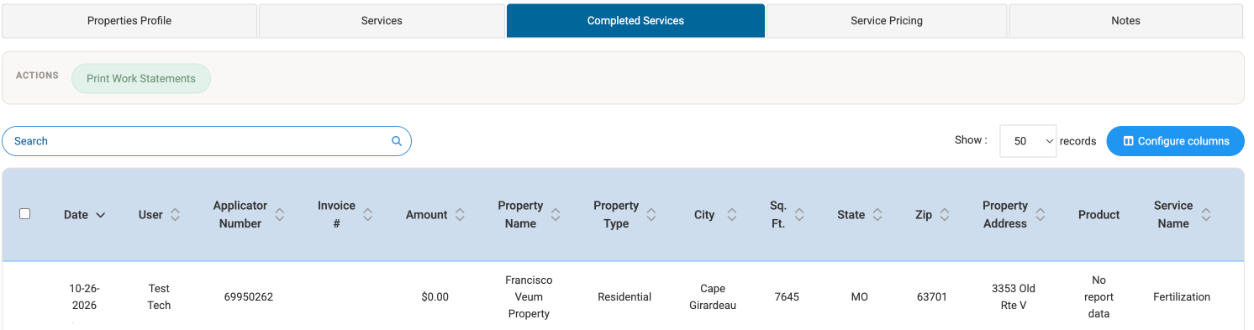
- Configure columns: choose which columns to show. The Customer column is hidden by default and can be turned on here.
- Print Work Statements: check one or more services, then click it to print their work statements.
- Use Search and Show the same way as on the Services tab.