
Overview
In addition to rescheduling your services, Spraye gives you even more control over when those services are able to be rescheduled. We offer a unique feature called "Hold Until" that allows you to hold lawn services in the event of a sod installation but still perform your tree and shrub or pest control services. You will see this option pop up when rescheduling services in the tech and admin views. However, you can also access this feature from a customer's profile on the Services tab.
How to Hold a Service
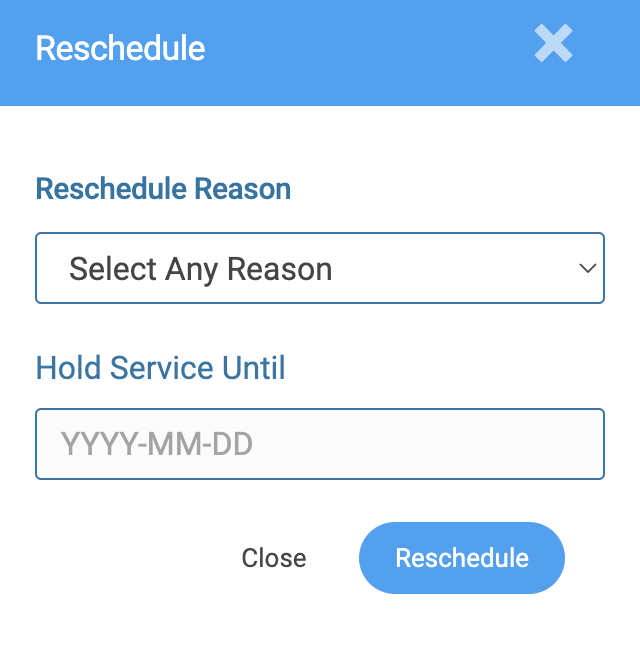
When you reschedule a service in Spraye, you'll see the "Hold Until" option in the box that pops up. You may choose a date in the dropdown menu which will put that service on hold until the specified date. This means no users will be able to reschedule the service until said date.
You may also place individual services On Hold from the customer's profile. Navigate to their profile and click on the Services tab. From here, you can check the box next to any service and click the Hold Until button at the top of the table. 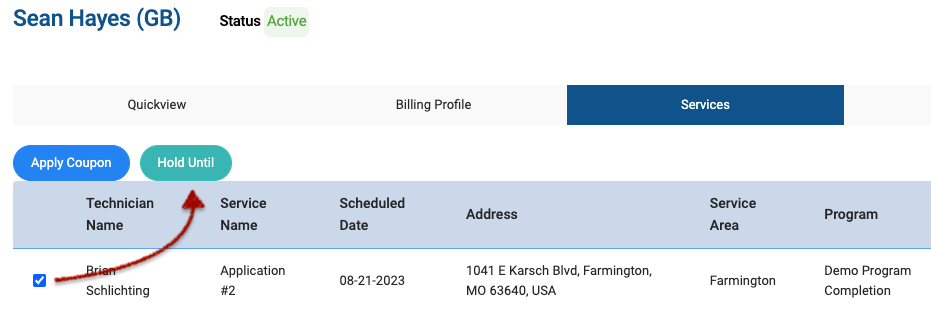
Next, you'll choose the date from the dropdown menu and click Hold. Your service is now on hold!
Lastly, you may place a service on hold by using the "pause" button in the Action column. Once you click the pause button, you may choose the hold until date in the box that pops up.
Please see an explanation for each action button below:
- Cancel Cancel the service completely from the customers profile

- Active Remove the hold on a service making it active and ready to schedule

- Hold Place a service on hold until a desired date

- Asap Mark a service as "ASAP" with a red highlight

Where to View "On Hold" Services
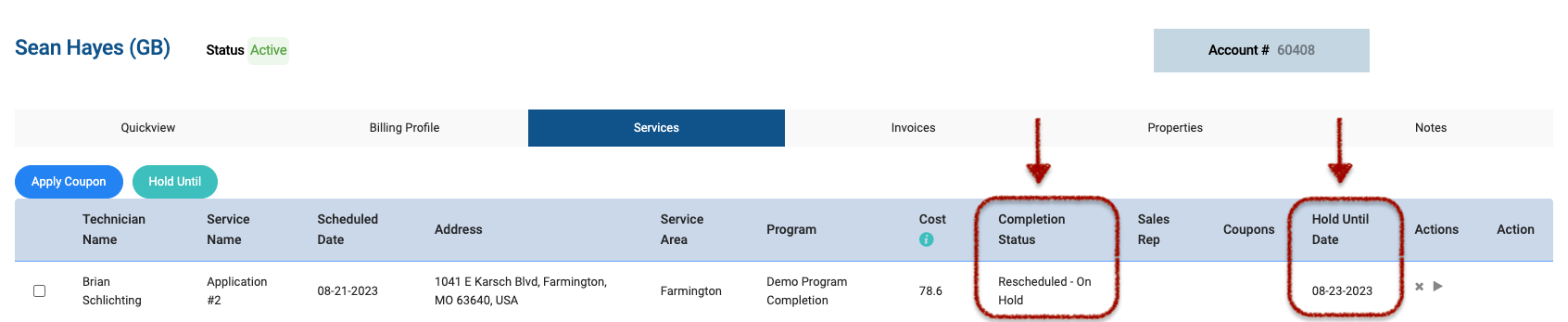
In the customer profile on the Services tab, you'll see two indicators that let you know this service is on hold.
- The Completion Status will say Rescheduled - "On Hold"
- The Hold Until Date will specify the date you chose when rescheduling
Removing a Service Hold
You can resume a service, that has been placed on hold, directly from the customer's profile:
- Go to the customer's profile and select the Services tab.
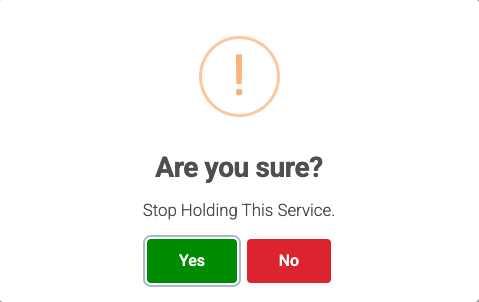
- Click the Play button in the Action column next to the on-hold service.

- Click Yes on the confirmation pop-up to reactivate the service.
Note: Service holds cannot be removed in bulk; they must be managed individually per customer.