
While field technicians typically complete stops on their mobile devices, administrators occasionally need to log service completions directly from the desktop interface.
The Complete Services action button on the customer Services tab allows office staff to manually mark one or more services as completed. This function updates property records, logs chemical application data, generates corresponding invoices, and advances recurring service program schedules.
Which services can be completed: pending (unscheduled), scheduled and rescheduled services. A service doesn't have to be scheduled on a route first. If any of the selected services is Skipped, Canceled or already Completed, the Complete Services button is greyed out. Unselect those services to continue.
Key Functions & Features
When you use Complete Services, the system executes the following operational steps:
- Record Migration: Moves selected items from the active Services schedule to the Completed Services tab.
- Chemical Tracking & Reporting: Prompts for regulatory and compliance details (e.g., application rate, target pests/weeds, products used, and weather metrics).
- Invoice Generation: Triggers billing based on your account's invoicing preferences, queueing or generating an invoice under the Invoices tab.
- Program Scheduling: Advances recurring multi-round treatment programs to calculate and queue the next scheduled application.
Step-by-Step Instructions
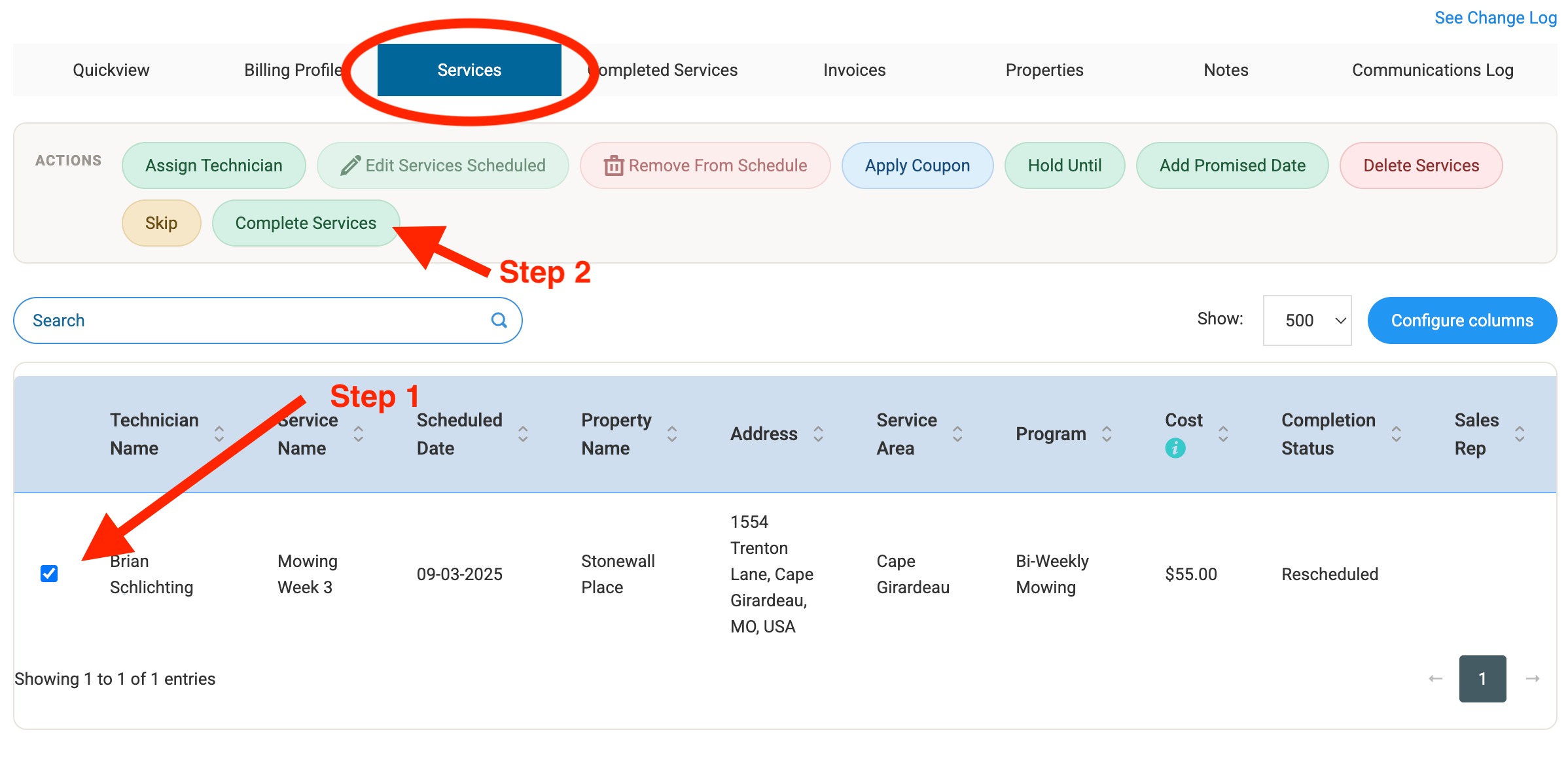
Step 1: Locate the Customer's Services Tab
- Search for and select the target customer profile.
- Click on the Services tab located on the primary navigation menu.
Step 2: Select the Service(s)
- Locate the service(s) in the table below the action toolbar. Pending, scheduled and rescheduled services can all be completed.
- Select the checkbox adjacent to each service item you wish to mark complete.
Step 3: Trigger Service Completion
- Click the light-green Complete Services button located in the ACTIONS toolbar.
- A pop-up modal will appear requesting completion parameters.
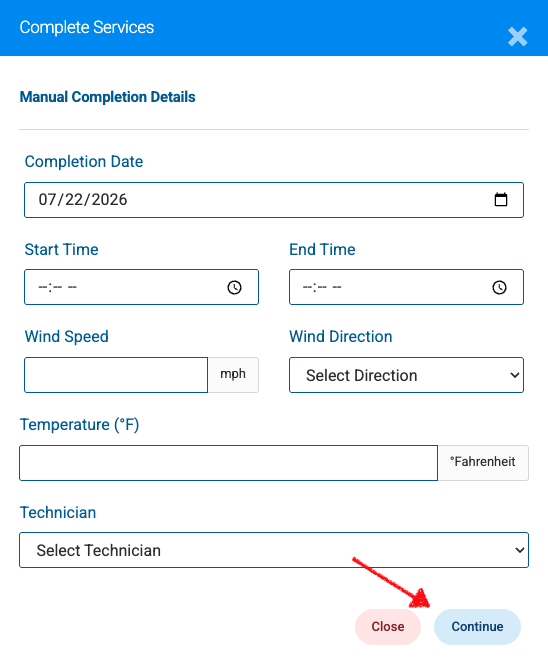
Step 4: Fill Out Completion Details
In the Manual Completion Details window, enter when the work happened. Spraye looks up the wind and temperature for that time automatically:
- When did this happen: each service has its own Date, Start Time and End Time, grouped by property. To use the same times for all of them, fill in the Apply to every service row and click Apply. Dates and times can't be in the future.
- Weather conditions: Wind Speed, Wind Direction and Temperature (°F) fill in automatically from each service's date and time. You can still change them. Once you edit a value by hand, it isn't overwritten if you change the time later. If weather isn't available, you'll be asked to enter it yourself.
- Technician: select the technician who completed the work (required).
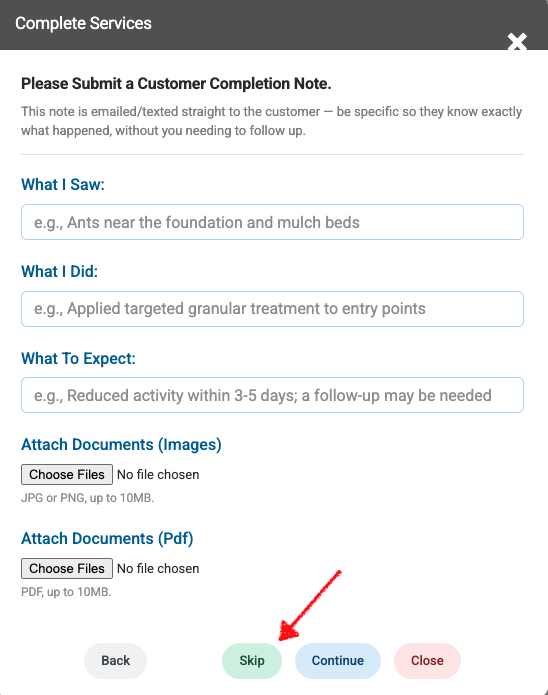
If the Require Technician Customer Notes option is enabled you will have the option to skip entering this information.
Step 5: Save & Finalize
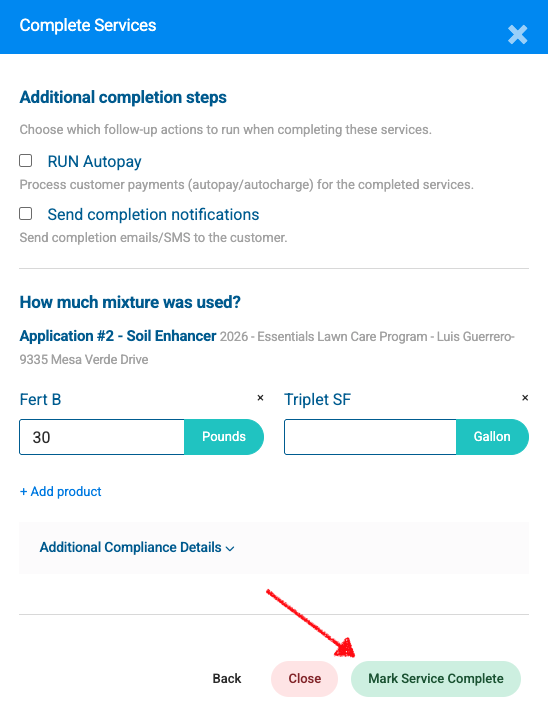
After clicking Continue in the initial details window, complete the follow-up screen options:
- Select Additional Completion Steps:
• RUN Autopay: Check this box to immediately process automatic customer payments (autopay/autocharge) for the completed service(s).
• Send completion notifications: Check this box to trigger automated completion emails or SMS messages to the customer. - Log Mixture & Product Usage:
• Under How much mixture was used?, specify the chemical/product applied for the service.
• Click + Add product to record additional chemicals or mix quantities as needed. - Expand Additional Compliance Details (Optional):
• Click the Additional Compliance Details dropdown to input any required state or regulatory information not captured on the previous screen. - Finalize Completion:
• Click the green Mark Service Complete button in the bottom-right corner.
• The record will now migrate to the Completed Services tab, and any selected billing or notification actions will immediately execute.
Additional Compliance Details: on the last screen, answer the compliance questions once for each property. The answers apply to every completed service on that property: Within 30 meters of an open body of water?, Adjacent sensitive areas?, Soil Moisture (Dry or Wet) and Precipitation at time of application? Then click Mark Service Complete.
Bulk Completion of Services from the Scheduled Routes Page
The Scheduled Routes page allows you to mark multiple services complete across different customers or routes simultaneously.
Step-by-Step Instructions
Step 1: Access the Scheduled Routes Page
- Navigate to the Scheduled Routes tab from the primary navigation menu.
Step 2: Select the Service(s)
- Select the checkbox adjacent to each service item you wish to complete, or use the Select All header checkbox to select all filtered items at once.
Step 3: Trigger Service Completion
- Click the light-green Complete Services button in the top ACTIONS toolbar.
- A pop-up modal will appear to capture completion parameters for all selected records.
Step 4: Enter Shared Job & Compliance Details
The same Manual Completion Details window opens for all the selected services:
- When did this happen: each service has its own Date, Start Time and End Time, grouped by property. To use the same times for all of them, fill in the Apply to every service row and click Apply. Dates and times can't be in the future.
- Weather conditions: Wind Speed, Wind Direction and Temperature (°F) fill in automatically from each service's date and time. You can still change them. Once you edit a value by hand, it isn't overwritten if you change the time later. If weather isn't available, you'll be asked to enter it yourself.
- Technician: select the technician who completed the work (required).
Note: If the Require Technician Customer Notes option is enabled for your account, you can skip entering individual technician notes during a bulk process.
Step 5: Configure Post-Completion Actions & Chemical Usage
Click Continue to proceed to the finalize screen:
- Automation & Payment Options:
• RUN Autopay: Check this box to automatically charge stored payment methods for all applicable non-prepay services.
• Send completion notifications: Check this box to trigger automated completion emails or SMS alerts to all selected customers. - Log Chemical & Product Usage:
• Under How much mixture was used?, select the chemical/product applied and specify total mixture amounts.
• Click + Add product to log additional products or tank-mix details across the batch. - Additional Compliance Details (Optional):
• Expand the dropdown if you need to attach specific regulatory or state tracking details to all selected jobs.
Additional Compliance Details: on the last screen, answer the compliance questions once for each property. The answers apply to every completed service on that property: Within 30 meters of an open body of water?, Adjacent sensitive areas?, Soil Moisture (Dry or Wet) and Precipitation at time of application? Then click Mark Service Complete.
Step 6: Finalize & Process
- Click the green Mark Service Complete button in the bottom-right corner.
- The selected records will migrate to the Completed Services tab, and any automated billing or customer notifications will execute immediately.
Best Practices & Common Use Cases
- Paper Work Orders: Use this workflow when processing physical paper route sheets submitted by applicators at the end of the day.
- Connectivity / Technical Overrides: Utilize desktop completion if a technician experienced network drops, battery loss, or device failure in the field.
- Compliance Accuracy: Ensure accurate product quantities and chemical application rates are entered into the modal to maintain compliance with local and state regulatory reporting standards.