
A customer's address may be typed out and appear entirely correct text-wise in their billing and customer profiles, but their location incorrectly renders in a completely different state, city or location on the system maps.
Cause
This happens when an address is manually typed into the system without being validated by the mapping system. If the address isn't properly geocoded (linked to exact GPS coordinates), the map engine may default the property location to a matching street address found in another state.
Solution / Resolution
To fix the map placement, you need to re-verify the address using the built-in Google address autocomplete dropdown. This forces the system to correctly geocode the property's coordinates.
Step-by-Step Instructions:
- Navigate to the Properties Profile page for the affected customer account.
- Locate the Address input field.
- Click inside the address text box to trigger the address autocomplete system.
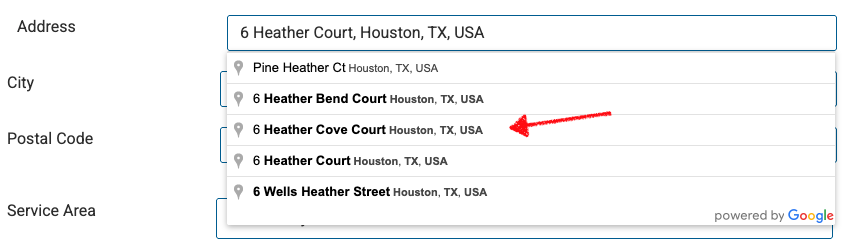
- A "powered by Google" dropdown menu will appear beneath the text box listing valid address matches across the country.
- Carefully look through the dropdown suggestions and select the exact matching address line that includes the correct City and State.
- Once the correct location is selected from the dropdown, save your changes.
The map will instantly update, and the property will now display accurately in the correct state.
If you're unable to find the correct address you can also use the Latitude & Longitude on the Property Profile.