
A customer's address may be typed out and appear entirely correct text-wise in their billing and customer profiles, but their location incorrectly renders in a completely different state, city or location on the system maps.
Cause
This happens when an address is manually typed into the system without being validated by the mapping system. If the address isn't properly geocoded (linked to exact GPS coordinates), the map engine may default the property location to a matching street address found in another state.
Solution / Resolution
To fix the map placement, either re-select the address from the Google address suggestions (steps below), or drop the map pin on the correct spot (see Setting the Location With the Map Pin below). This forces the system to correctly geocode the property's coordinates.
Step-by-Step Instructions:
- Navigate to the Properties Profile page for the affected customer account.
- Locate the Address input field.
- Click inside the address text box to trigger the address autocomplete system.
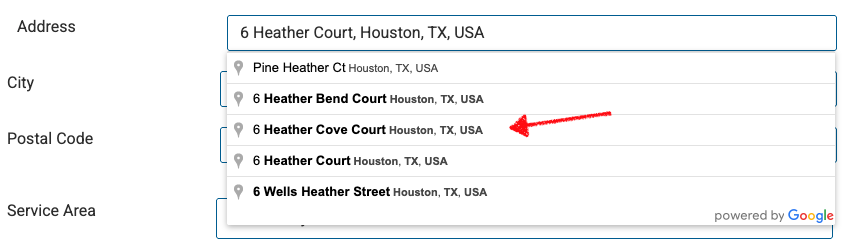
- A "powered by Google" dropdown menu will appear beneath the text box listing valid address matches across the country.
- Carefully look through the dropdown suggestions and select the exact matching address line that includes the correct City and State.
- Once the correct location is selected from the dropdown, save your changes.
The map will instantly update, and the property will now display accurately in the correct state.
If you're unable to find the correct address you can also use the Latitude & Longitude on the Property Profile.
Setting the Location With the Map Pin
Every Add Property and Edit Property form now shows a map under the Latitude and Longitude fields: the admin Add/Edit Property pages, the Add Property pop-up on a customer's Properties tab and on Add Program, and the technician's Edit Property and estimate forms.
- Click anywhere on the map, or drag the pin, to set the property's location. Latitude and Longitude fill in automatically.
- Latitude and Longitude can no longer be typed. Use the pin or the address suggestions to set them.
- Picking an address from the Google suggestions also moves the pin to that address.
- After you move the pin, Spraye shows Address at this point: … with a Use this address link. Clicking it fills Street, City, State and Zip (Address 2 and the pin are left as they are). The address is never changed unless you click the link.
- On Edit Property, Recalculate from address clears the coordinates so the address is placed on the map again when you save. If you change the address but leave the old pin, Spraye warns you that the pin is still at the previously saved location.
This is especially useful in new neighborhoods, where Google may not know the street address yet. Existing properties were not moved; correct any you know are wrong with the pin.
When a property on a route from today onward gets a new pin or address, that route's line, stop order and mileage are rebuilt the next time the route is opened.
Properties We Couldn't Place on the Map
When Spraye can't place a property, office users see it in two places (technicians and customers don't see these messages):
- Dashboard pop-up: "We couldn't place these properties on the map" opens when the admin dashboard loads. It lists each property with the reason, for example "No map location.", "The map location is outside the US and Canada." or a reason from Google such as "Google found no match for this address." or "Google matched only part of this address." Click an address to open that property in a new tab.
- Edit Property: a yellow notice reads "We couldn't place this address on the map: [reason]."
To fix a property, correct its address (picking it from the Google suggestions) or set the location with the map pin, then save. The property drops off the list once it has a valid location. Properties imported from a CSV file with an address Google can't place show up here too. Until they are fixed, these properties may be missing from maps and routes.
Get Directions on the Technician Screen
On the Technician Screen, Get Directions opens Google Maps with directions to the property's map pin. If the property has no valid pin, it uses the full address (street, city, state and zip). Directions always start from the device's current location.