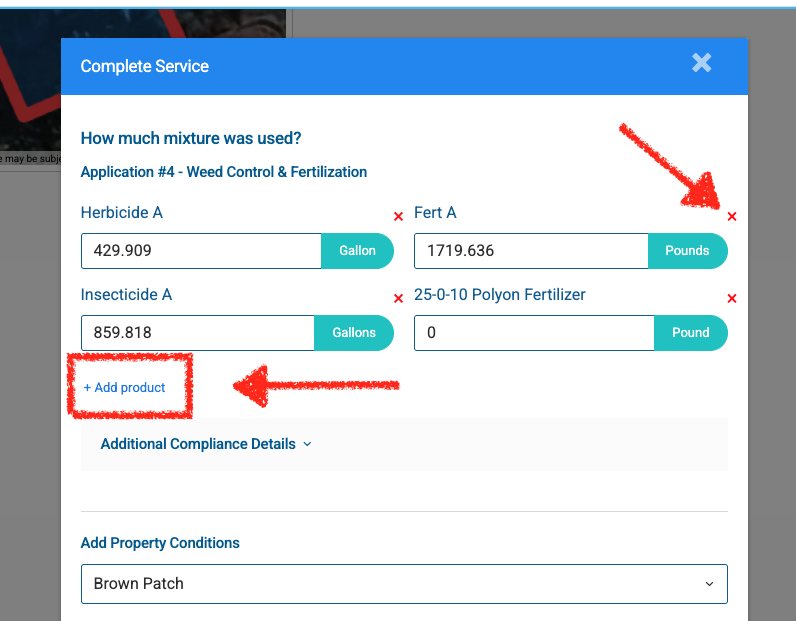
Your technicians can modify the products or chemicals that were used at a property/stop for a particular service done for a customer on the fly at each stop for each individual customer. To do this, when the technician clicks the “Complete Service” button at a stop, there is a screen that shows up like this one attached that shows which products would normally be used and how much for this service and customer. To modify them, you can click the red “X” next to any product you want to remove, and then click the “Add product” link to add a new product (for example if you want to replace the one you removed).
In order for the replacement product to be an option to add it does first need to be added to your Products list on the admin side and then it will appear in the drop-down of available products to add at each stop. If you have not yet added the product to your account, you can learn how to do this here: How to Add a New Product to Your SPRAYE Account
Common Scenario:
Sometimes you may need to change a product(s) to a different one that what is normally used for a service within a program for an individual customer. This provides a way to do this without creating a whole new program or service or adjusting it for all customers.
Here is an example:
A customer is on a Bermuda 6-Step Program
They are on their third application, and normally everyone gets a 40-0-0 granular fertilizer on this application.
However, for this particular customer you need to change this fertilizer type to a 18-24-2fertilizer type.
How to Leave a Note to Change the Products for the Technician Prior to The Service
If you need to make sure the technician knows to change the products for a particular service for a customer instead of using the normal products for that service, you can add a special type of note for them ahead of time to make sure they are aware of the needed change.
1) Add a service-specific note for the technician for this particular service only for this customer and in the note let them know to use the new product instead of the old one you don’t want them to use.
More details on How to add a Service-Specific Note
2) This will show up as an alert for the technician at the stop as soon as they click “Start Service” so that they know before starting they need to change what product they are using for that customer, and then they can still make the adjustment I shared previously.