
Overview
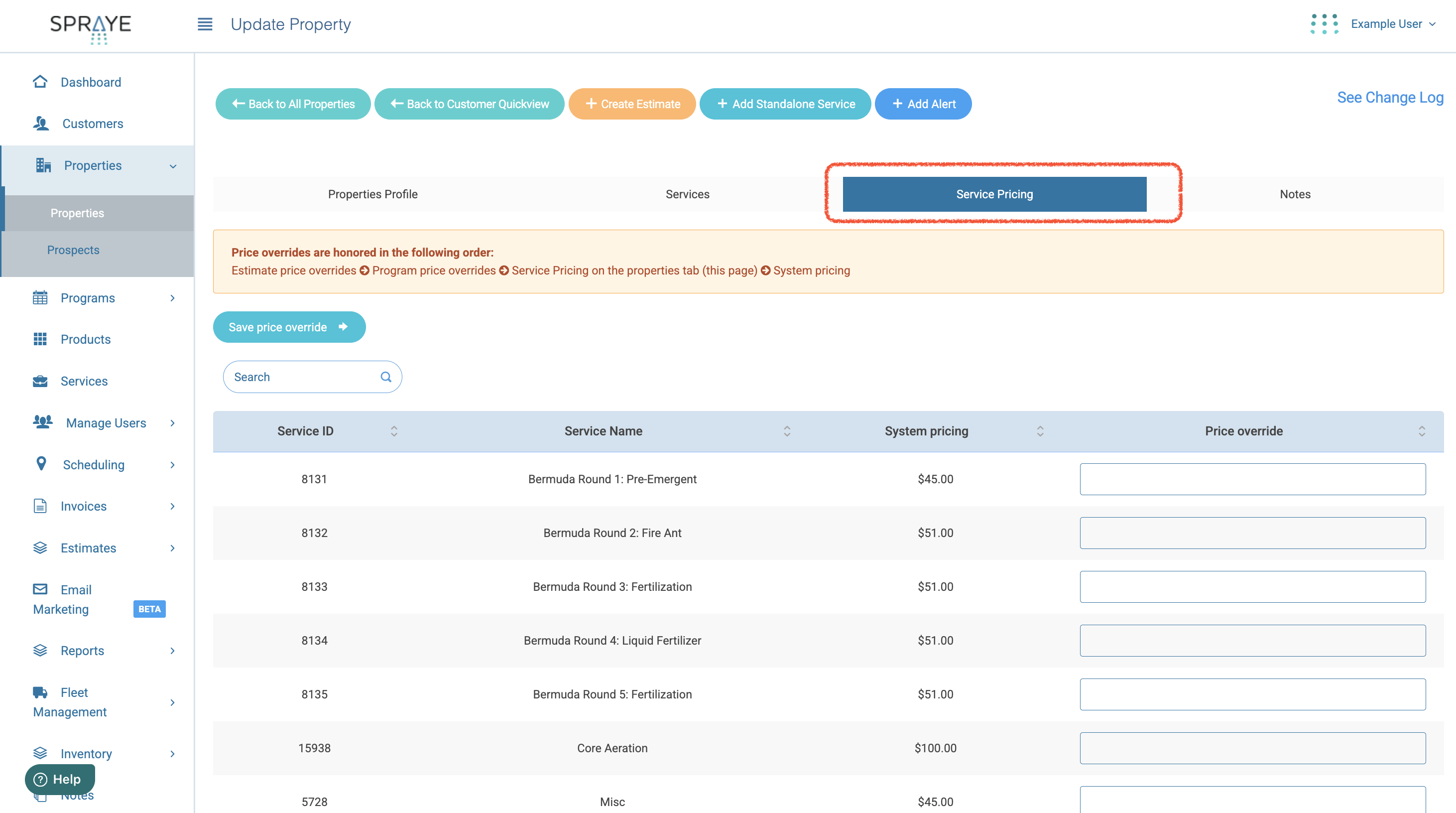
The Service Pricing tab allows users to view and manage property-specific pricing for all services offered by the company. This new tab provides visibility into both system-calculated pricing and custom price overrides for each service, simplifying customer inquiries and improving accuracy in estimates and invoicing.
Tab Details
The Service Pricing tab will display three columns:
| Column | Description |
|---|---|
| Service Name | Displays the name of each service in alphabetical order. |
| System Pricing | Shows the system’s auto-calculated price for the service. |
| Price Override | A text field where users can manually enter a custom price specific to the property. This override applies when users do not want to use system pricing. |
Pricing Matrix companies
If your company prices services with a Pricing Matrix (see Pricing Matrix: Pricing Services by Lawn Size Ranges):
- System Pricing is the price from the service's matrix for this property's square footage (or the zone's square footage, for a service tied to a property zone), including the property's difficulty level.
- If a service is part of more than one program on this property, it's listed once per program, with the program name in brackets, for example Aeration (Premium Lawn Program). Enter a price override on the first of those rows.
- Price overrides work the same way as before and take priority over the matrix price.
Pricing Hierarchy
Pricing is determined using the following hierarchy, in order of precedence:
Estimate Overrides (on accepted estimates)
Program Price Overrides
Service Pricing Tab Overrides
System Pricing
Note:
If a service has a price override on an accepted estimate, that value takes precedence and will not appear on the Service Pricing tab.
On the property's Edit Property page, a program whose price was set by an accepted or paid estimate shows Price set from estimate with a link to the estimate, and its Price Override can't be edited there. Change the price on the estimate instead. See Price Overrides for details.
If no higher-level override exists, the system will use the pricing from the next available level in the hierarchy.
Behavior in Estimates and Invoices
Estimates
When creating a new interactive estimate via the estimate wizard, the system will:
Auto-fill any existing price overrides from the Service Pricing tab.
Continue to prioritize higher-level overrides (estimate → program → service → system pricing).
Invoices
When generating an invoice, pricing is determined in this order:
- Estimate Overrides (on accepted estimates)
- Program Price Overrides
- Service Pricing Tab Overrides
- System Pricing
Scheduled and Completed Services
If a service is already scheduled, entering a new price override on the Service Pricing tab will:
Update the invoice price for that service only if it has not yet been completed.
Not affect the invoice for services that are already completed.
Standalone Service Additions
When a user adds a standalone service using the existing button:
The system will automatically pull in any price override from the Service Pricing tab.
The user may still edit this override during the service assignment process.
Key Benefits
Provides quick access to service-specific pricing for any property.
Eliminates the need for manual calculations when responding to customer inquiries.
Ensures consistent pricing logic across estimates, invoices, and property-level overrides.
Enhances transparency and efficiency in pricing management.
Troubleshooting
If a price override on the Service Pricing Tab isn’t reflecting, please check for an existing Estimate Override or Program Price Override. These specific settings take precedence and will bypass any values entered on the Service Pricing Tab.