
Please note the following limitations of this feature:
- Adding or removing services from a route will automatically remove any of the manual edits made to the route and reset with system routing.
- A technician may still choose to go out of the set order on the technician screen.
Manually Editing the Order of a Route
To manually change the order of a route, you will first want to navigate to the "Scheduled Routes" page.
From there, you will want to click on the "View/Edit Routes" button at the top of the page.
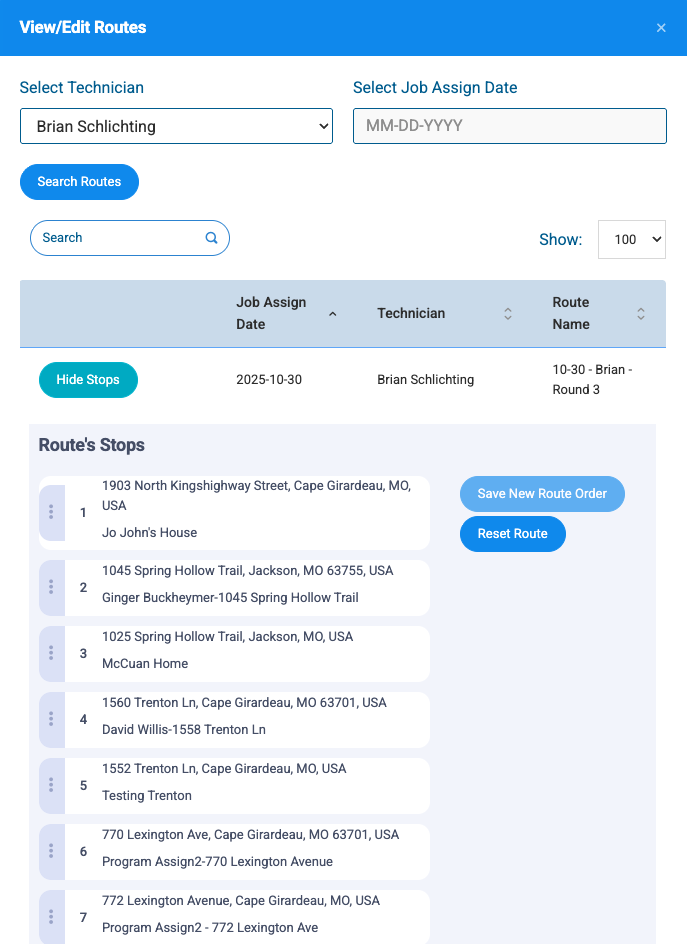
When you click the button, it will bring up a window that allows you to search for existing routes by technician name and date (neither is required). Please note that this search tool only displays upcoming or uncompleted routes. Completed routes from the past will not appear in these results.
Once you find the route you would like to edit, click "Show Stops". Then you can then drag and drop the order of the stops and then click the "Save New Order" button.
This will update route sheets and the order of the stops on the technician screen.
Looking Up Historical or Past Routes
⚠️ Important Note: Spraye does not currently have a direct tool to pull up or view a previous day's completed routing map. However, if you need to review the work from a past date, you can reconstruct the day's activity using the two workflows below.
To Track Services That Were Completed
If the technician successfully finished the stops on that route, you can view them chronologically through your service records:
- Navigate to the Completed Service Log.
- Filter the log by the specific past date you want to review.
- Click the Time Completed column header to sort the list. This will organize the services in the exact chronological order that the technician completed them throughout that day.
To Track Services That Were Skipped or Rescheduled
If stops on a previous route were missed or pushed to a later date, they will revert back to your uncompleted services list:
- Navigate to the Unscheduled Service List.
- Locate the Rescheduled Reason column header and click it twice.
• Note: Sorting the column twice forces the system to pull these specific items directly to the top of your page. - Look for the rows highlighted in blue. These represent all your rescheduled services grouped together, allowing you to see exactly which stops from the past route were not completed.
Before you begin organizing your daily stops, take a moment to read our guide on Understanding Route Optimization to see how the system handles your data.