
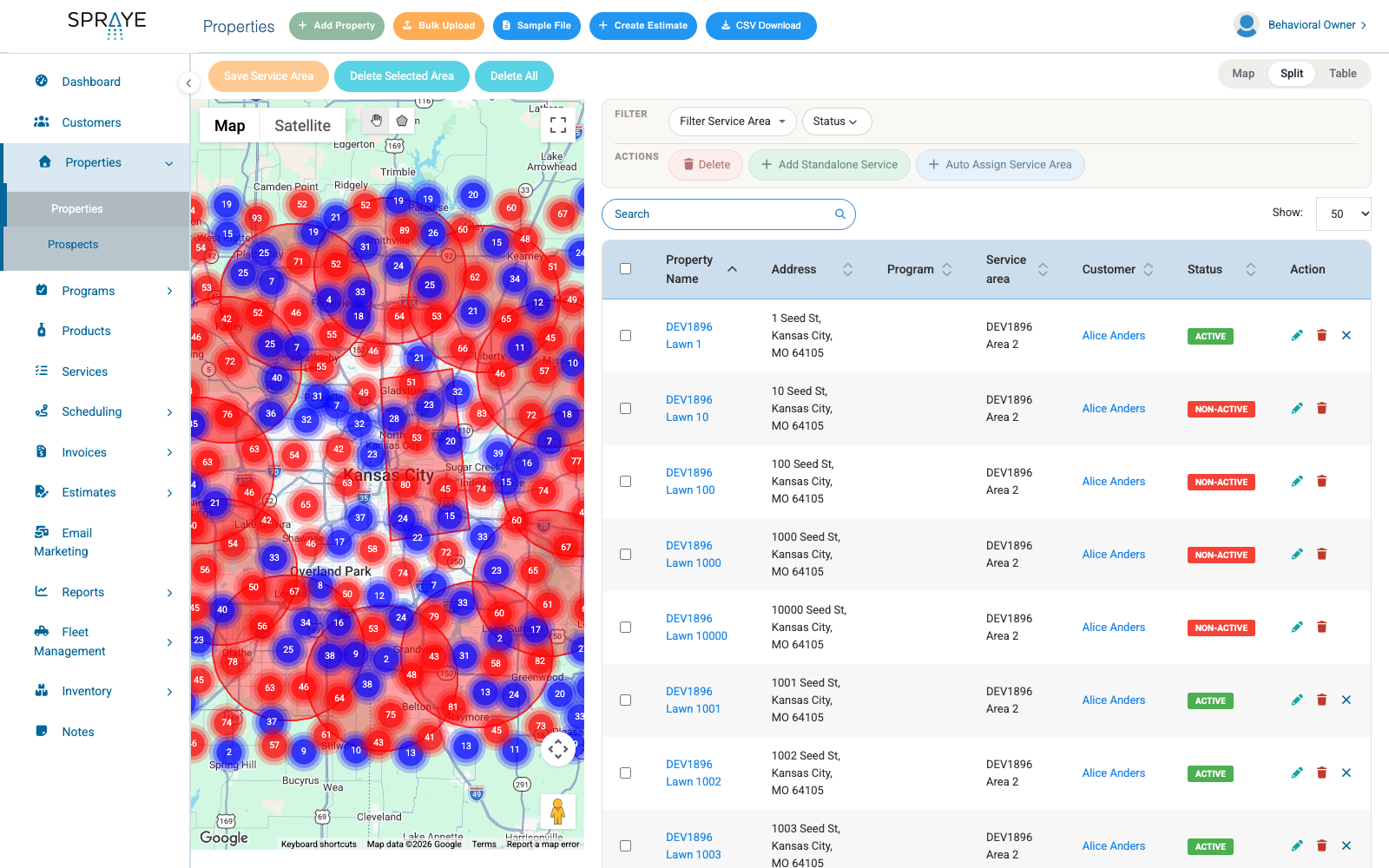
The map on the Properties page shows a pin for every property that matches your filters, not just the properties on the table page you are looking at. When many properties sit close together, the map groups them into numbered circles (clusters), so the page stays quick even with thousands of properties.
What You Will See
- Every matching property on the map: the map shows all properties that match your Status filter, Service Area filter and search, whatever page size the table is set to. You no longer need to choose "All" in the Show menu to see every property on the map.
- A map that stays where you put it: moving between table pages or sorting a column does not move or redraw the map.
- Filters refresh the map: when you change the Status or Service Area filter, or search, the map updates to the matching properties and zooms to fit them.
Using Clusters
When you are zoomed out, nearby properties are grouped into a circle. The number in the circle is how many properties it holds.
- Click a cluster to zoom in on it.
- Keep zooming in (click a cluster again, or use the + button on the map). Clusters break apart into individual property pins once you are zoomed in to about neighbourhood level.
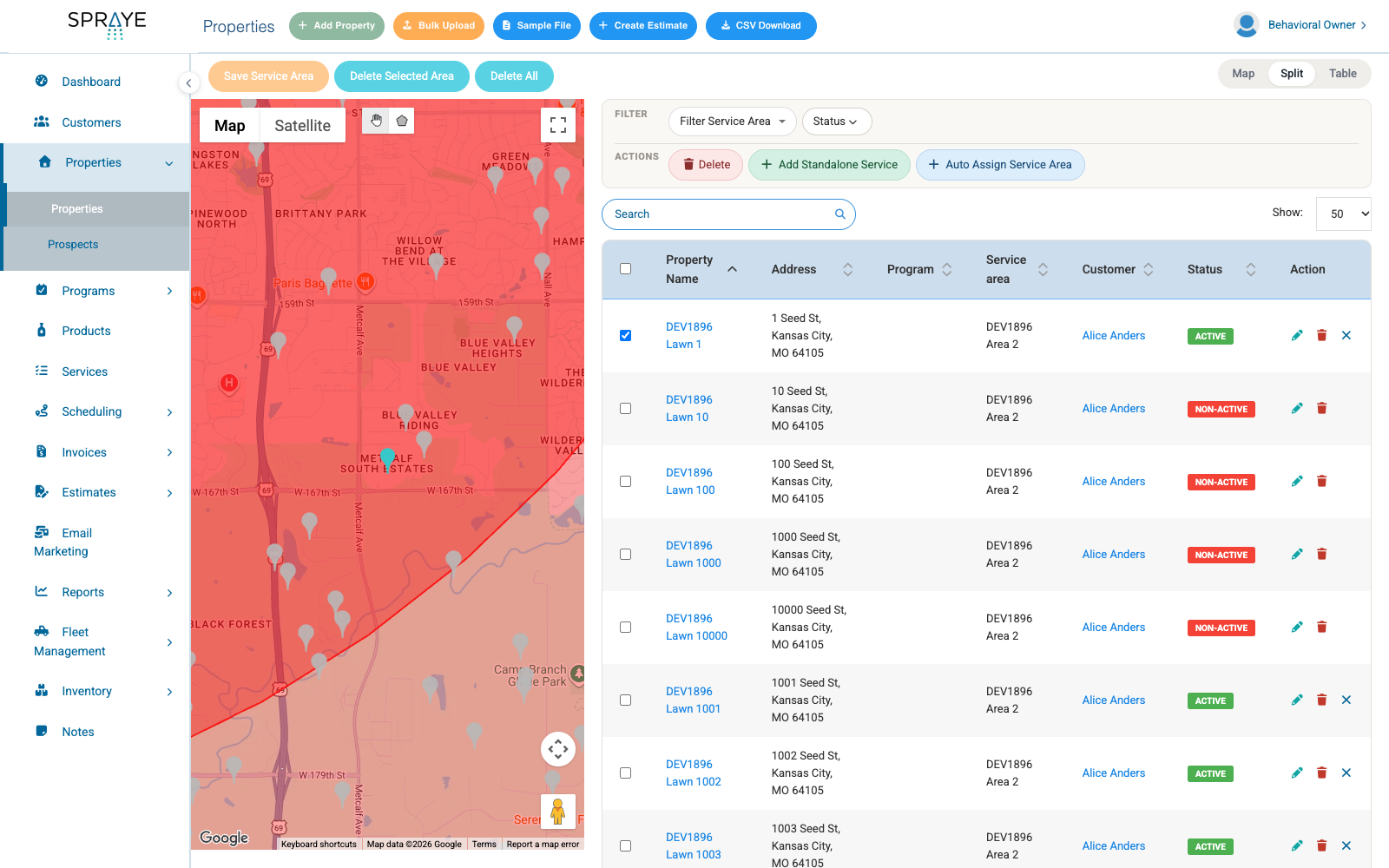
- Click a pin to see the property's address.
Selecting Properties
Tick a property's checkbox in the table (or use the checkbox in the header to select every property on the page) and its pin on the map changes colour, so you can see where your selection is. If a selected property is inside a cluster, zoom in to see its pin.
Service Areas and "Assign All"
Drawing and saving Service Areas works the same as before (see Service Areas). After you save a Service Area, Spraye asks whether to assign all of the properties to it. If you choose Yes, every property inside the outline that matches your current filters is assigned, including properties that are not on the current table page.
Tip: to include every property inside the outline, clear the Status and Service Area filters and the search box before you save.
FAQs
Q: Why is a property missing from the map?
A: A property shows on the map only when it has a location. See Correcting Properties Showing in the Incorrect Location on the Map to fix one.
Q: Do the Service Area counts change?
A: No. Clicking a Service Area outline still shows its name, number of properties and total square footage (see Viewing Property Counts and Square Footage on the Property List Map).