
Technicians and sales reps can add a brand-new customer and property in the field and go straight into the Interactive Estimate Builder. They can also start an estimate from any stop on their route, or from a service they've already completed today.
Turn it on
An administrator turns this on in Settings → Technician Settings → "Allow technicians to create new customers and create/send estimates in the field". When it's off, technicians don't see any of the options below.

Option 1: Create a new prospect from the menu
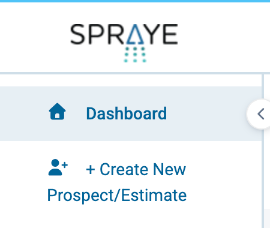
Step 1. In the technician view, click + Create New Prospect/Estimate in the left menu, under Dashboard.
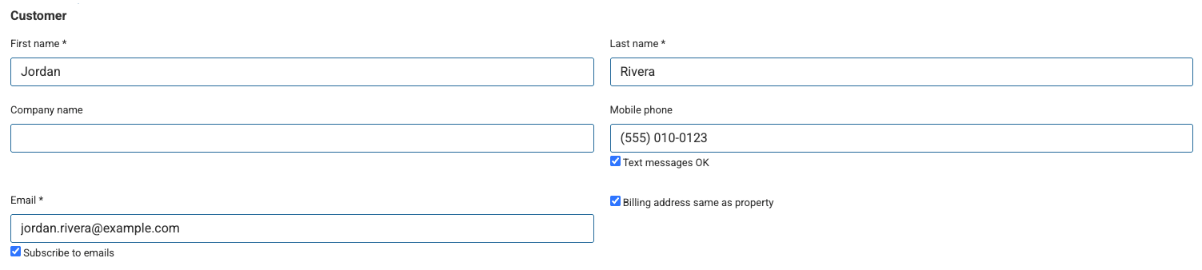
Step 2. Customer. Enter the first name, last name and email (all required), plus company name and mobile phone if you have them. "Billing address same as property" is checked by default. Uncheck it to enter a different billing address.
"Subscribe to emails" and "Text messages OK" are checked by default. Uncheck either one if the customer doesn't want emails or texts. Like customers added in the office, the new customer gets automated pre-service emails, and also pre-service texts when your company has "Turn on pre-service text message notifications for all new customers by default" turned on.
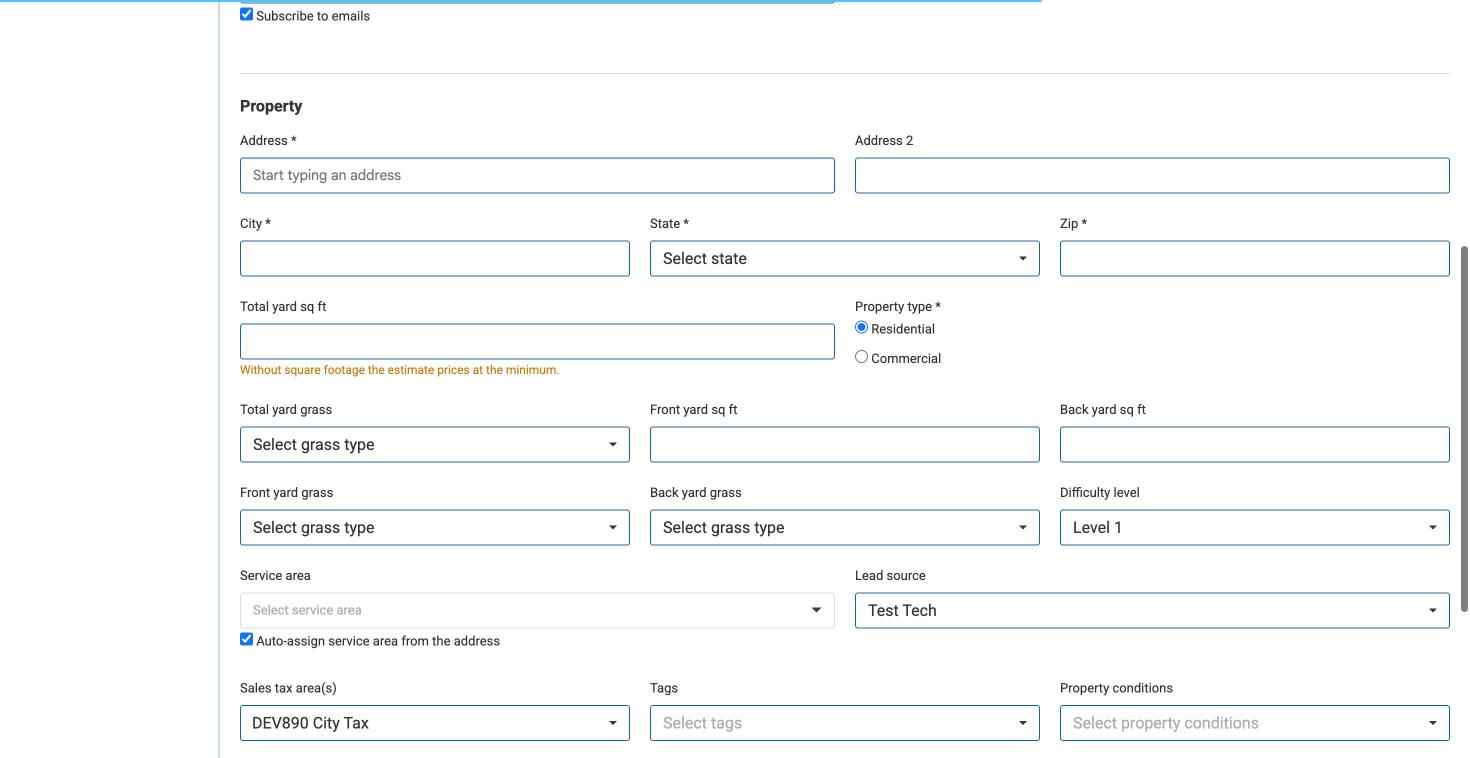
Step 3. Property. Start typing the address and pick it from the list. City, state and zip fill in for you. Then fill in:
- Total yard sq ft. Enter this whenever you can. Without it, the estimate prices every service at the minimum. Front and back yard square footage add up into the total automatically.
- Property type, grass types and difficulty level.
- Service area. "Auto-assign service area from the address" picks the matching area for you. You can still choose a different one.
- Lead source. Defaults to you.
- Sales tax area(s). Your company's default tax area is selected for you.
- Tags and property conditions, if needed.
Step 4. Optionally:
- Add a Measure Map ID. Use Add Measure Map Online Lawn Measurement to open Measure Map in a new tab and measure the lawn.
- Add notes.
- Add a property photo, from the phone camera or a saved image (JPEG, PNG, WebP or GIF, up to 20 MB).
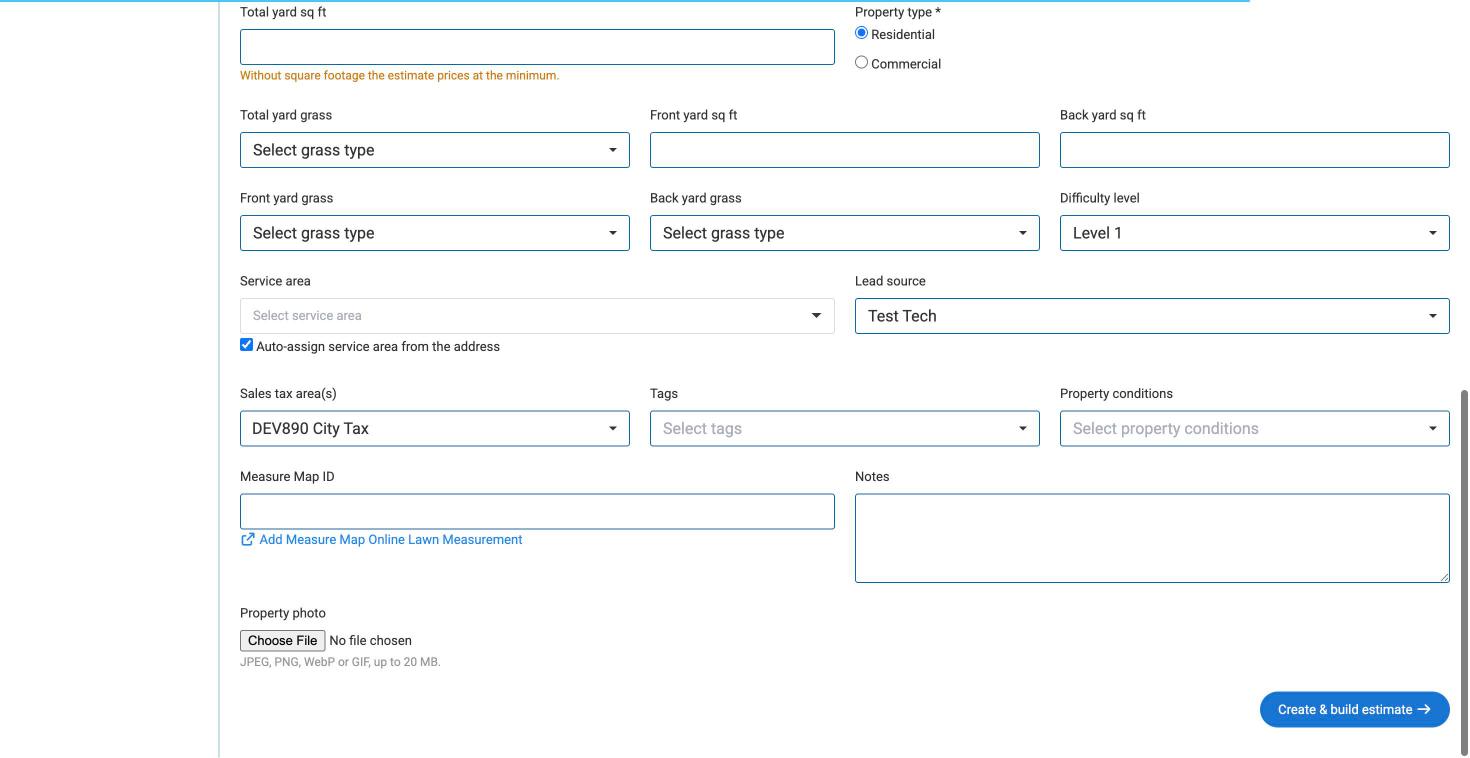
Step 5. Click Create & build estimate. Spraye creates the customer and property as Prospects and opens the Interactive Estimate Builder with the new property already selected.
If the customer or property already exists
- Same customer name: Spraye asks whether to continue anyway. Choose Continue anyway only if it's a different person with the same name.
- Same address: Spraye won't create a second property at that address. Choose Build estimate for the existing property to open the builder for the property that's already in Spraye, or Edit the address to correct what you typed.

Option 2: Create an estimate from a stop
Open any stop on your route. Below Get Directions, click Create Estimate to open the builder for that property. When you're done, ← Back returns you to the stop. (On Sales Visit stops, keep using the Sales Visit's own Create Estimate button.)

Option 3: Create an estimate from a completed service
After you complete a stop, it moves to Completed Services on your dashboard. Each completed service has a Create Estimate button. Use it when a customer asks for a quote after the work is done.

Good to know
- New customers and properties created this way are saved as Prospects. The office can see and edit them right away.
- Email is required so the estimate can be sent from the builder.
- The builder has the same options as the Sales Visit estimate: templates, programs, services, coupons, Save Draft, Send and Accept on behalf. See New Interactive Estimate Builder: Getting Started.