
SPRAYE's Interactive Estimate Builder makes it faster to build, price and send Interactive Estimates. The builder walks you through three short steps (Setup, Offer and Review & Send) with a live preview of exactly what your customer will see.
We recommend reviewing this guide before sending your first estimates with it.
What's new in the Estimate Builder?
- Start from a template in one click: programs, pricing and prepay settings come pre-filled.
- Packages, required programs and optional add-ons on one screen, in any mix.
- Price overrides and coupons per service, right on each program card.
- Skip this season: tick every service to skip in one list, and it's skipped everywhere on the estimate.
- Live preview of the customer's estimate while you build it.
- Totals for every billing option (Prepay, Pay As You Go and Monthly Installments) before you send.
- Bulk mode to send the same offer to multiple properties at once.
Before You Begin
A few things make the new builder faster to use:
- Interactive Estimate templates: if you already have templates, they appear in the builder automatically. Templates are the quickest way to start.
- Package names: your package tier names (for example Essentials / Premium / Elite) come from your Interactive Estimate settings.
- Monthly Installments (optional): the Monthly Installments billing option only appears if Monthly Installments is set up for your company. See Monthly Installment Billing: Getting Started.
To open the builder, go to:
Estimates → Interactive Estimates → Create New Estimate
Step 1. Choose How to Start
The first screen asks How do you want to start?
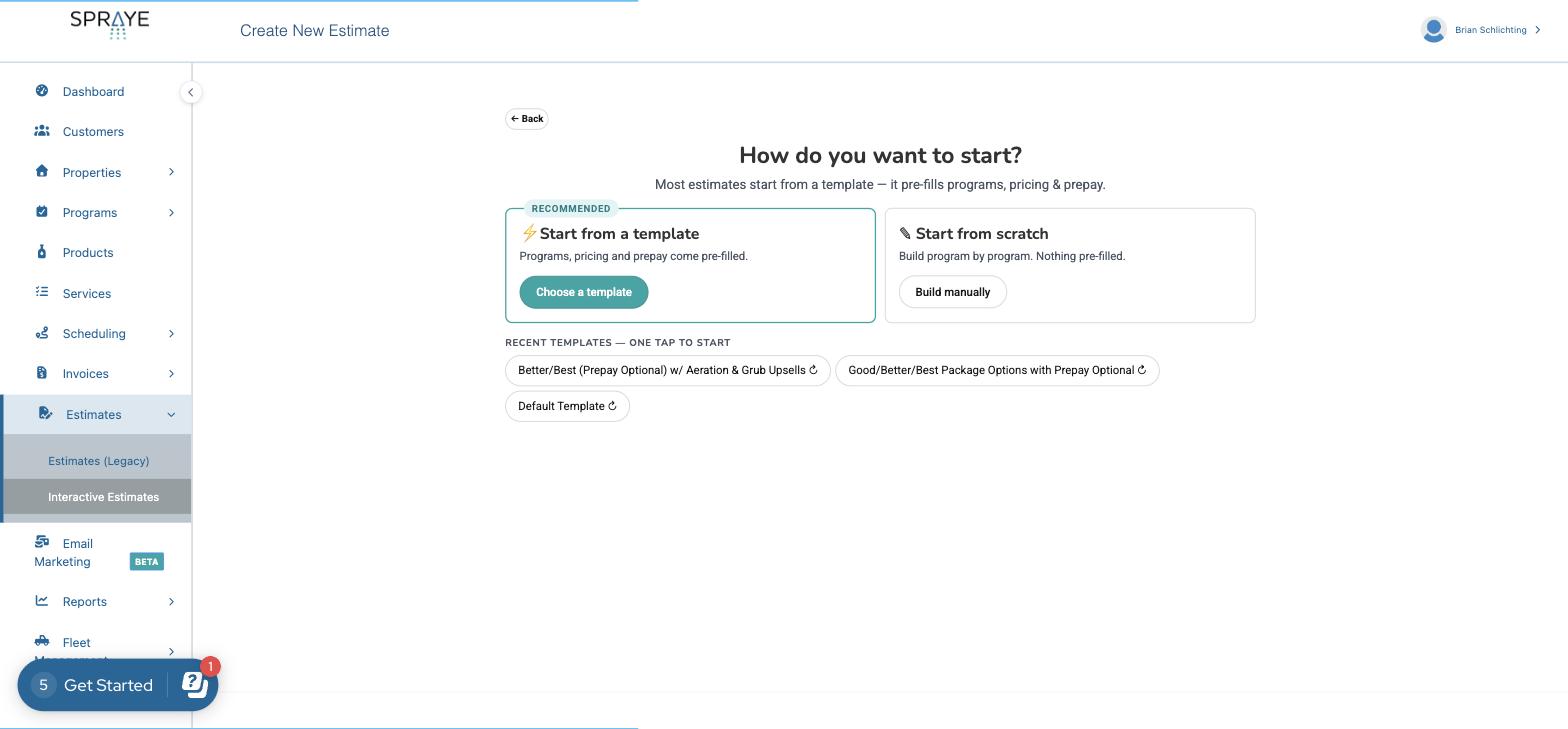
Option 1: Start from a template (recommended)
Click Choose a template, then click Use template next to the template you want. Programs, pricing, prepay settings and the template's Lead Source come pre-filled. You can still change anything before you send.
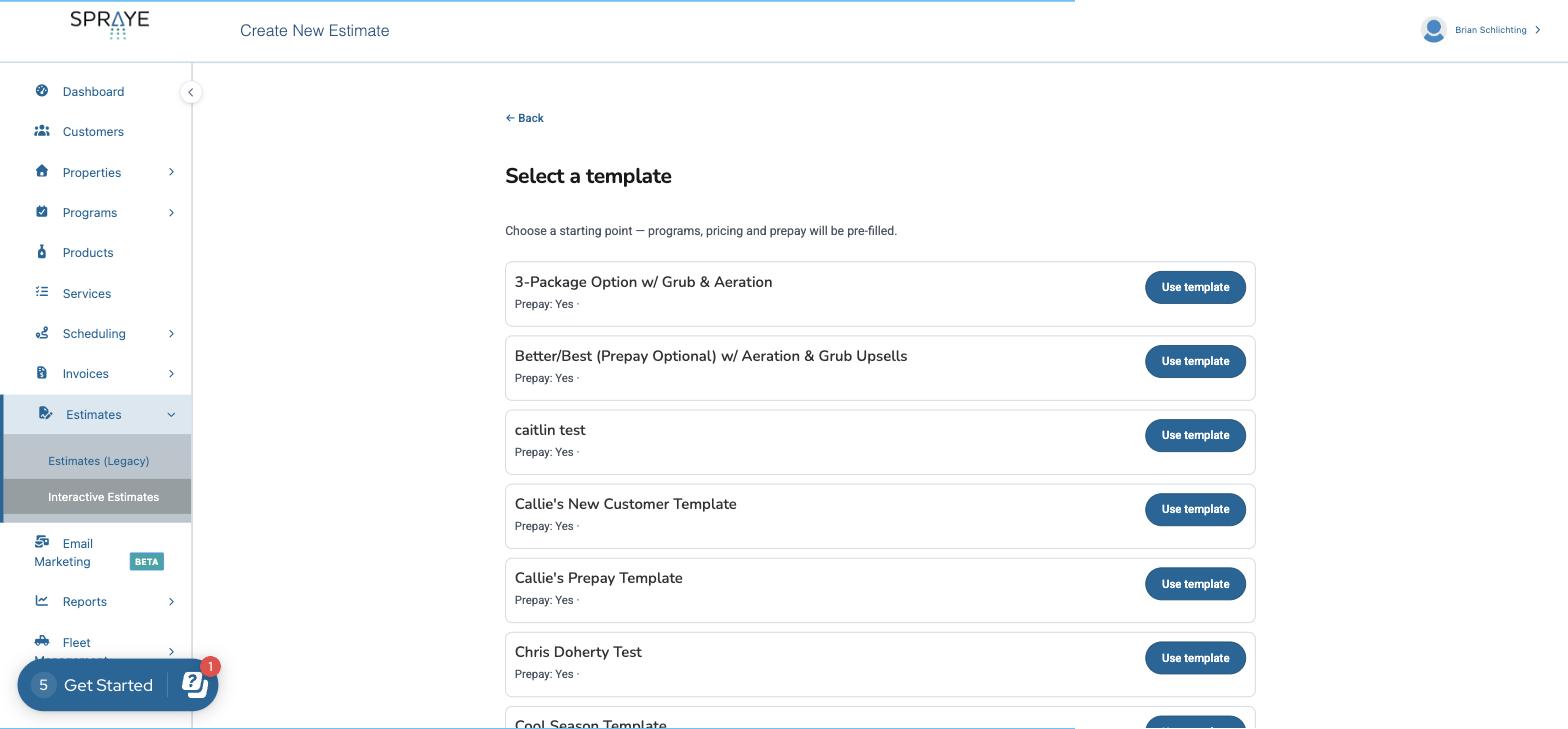
Tip: your most recently used templates appear under Recent Templates on the first screen. Click one to skip the template list.
Option 2: Start from scratch
Click Build manually to build the estimate program by program with nothing pre-filled.
Step 2. Offer Setup
On the Setup step you choose who the estimate is for and which billing methods to offer.
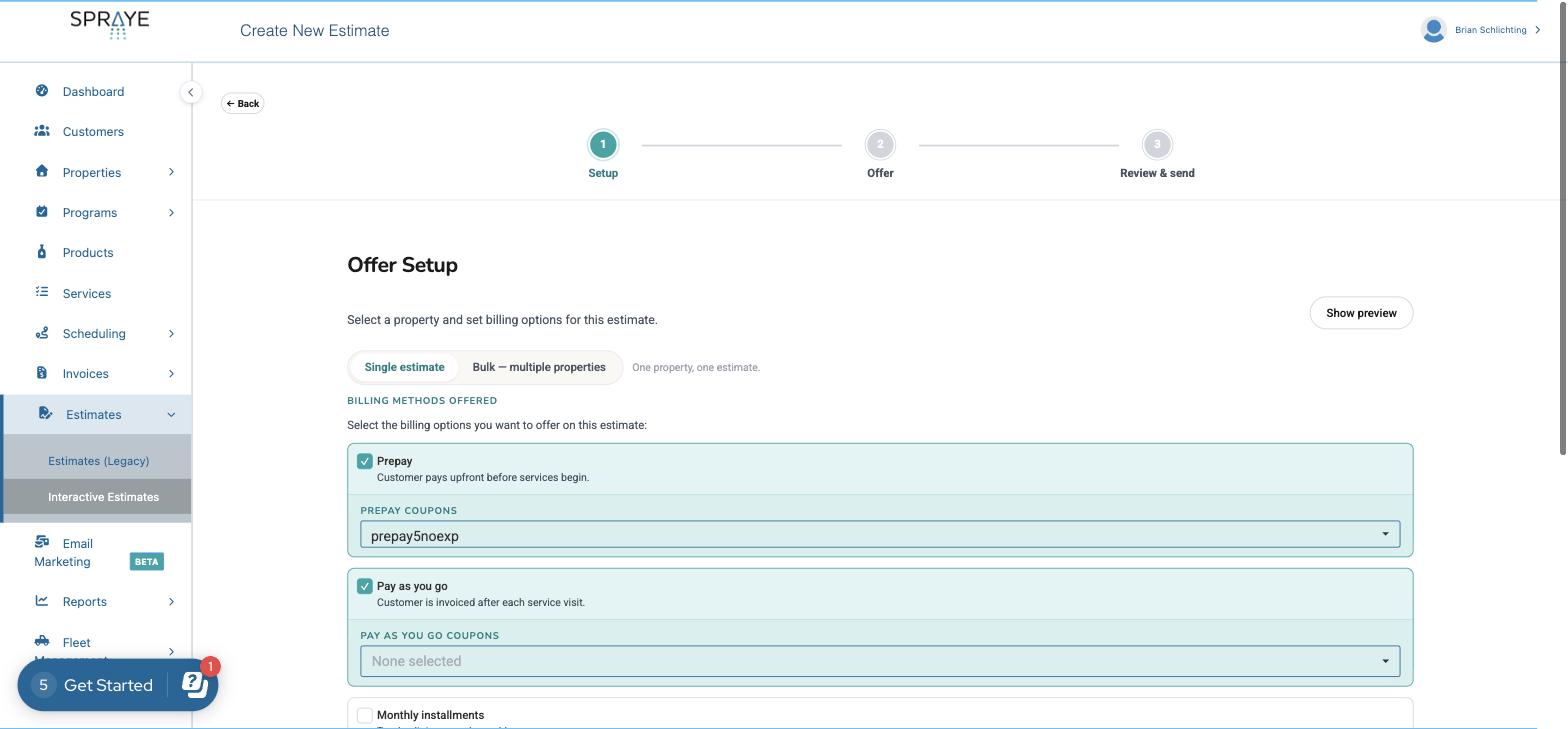
1. Choose Single or Bulk
- Single estimate: one property, one estimate.
- Bulk – multiple properties: send the same offer to several properties at once. See Sending Estimates in Bulk below.
2. Select the Billing Methods Offered
Check each billing option you want the customer to be able to choose:
- Prepay: the customer pays upfront before services begin. You can attach Prepay Coupons.
- Pay as you go: the customer is invoiced after each service visit. You can attach Pay As You Go Coupons.
- Monthly installments: the total is split into equal monthly payments. Only programs with Offer Monthly Installment Billing enabled are eligible.
If you started from a template, these are already set to the template's defaults.
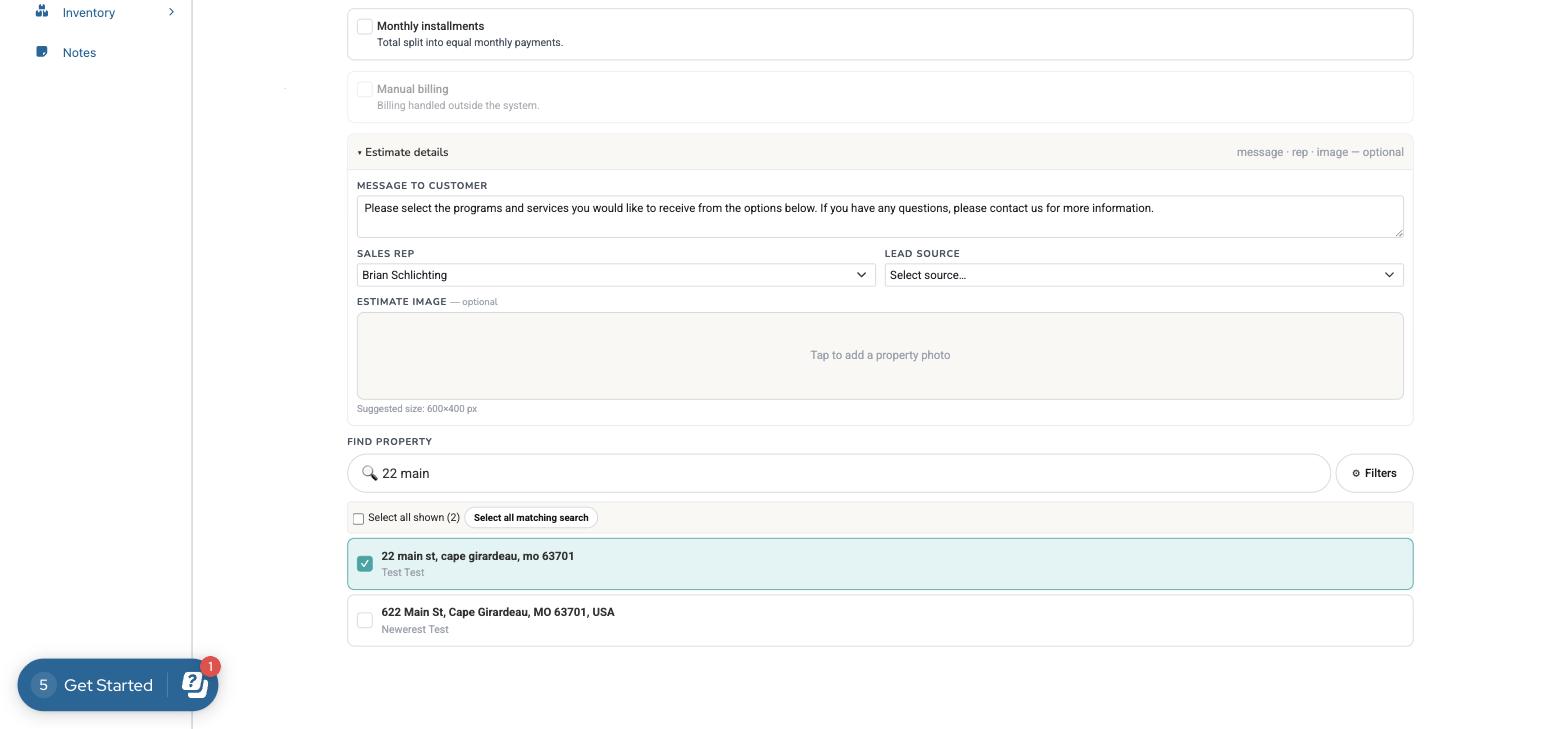
3. Add Estimate Details (optional)
Expand Estimate details to set:
- Message to Customer: shown at the top of the estimate.
- Sales Rep and Lead Source. When you start from a template, its Lead Source is filled in, and Sales Rep defaults to you.
- Estimate Image: an optional property photo (suggested size 600×400 px).
4. Find the Property
Under Find Property, type at least 2 characters of the customer's name or address and check the property. Use Filters to narrow the list.
Click Next: Build the offer → to continue.
Step 3. Build the Offer
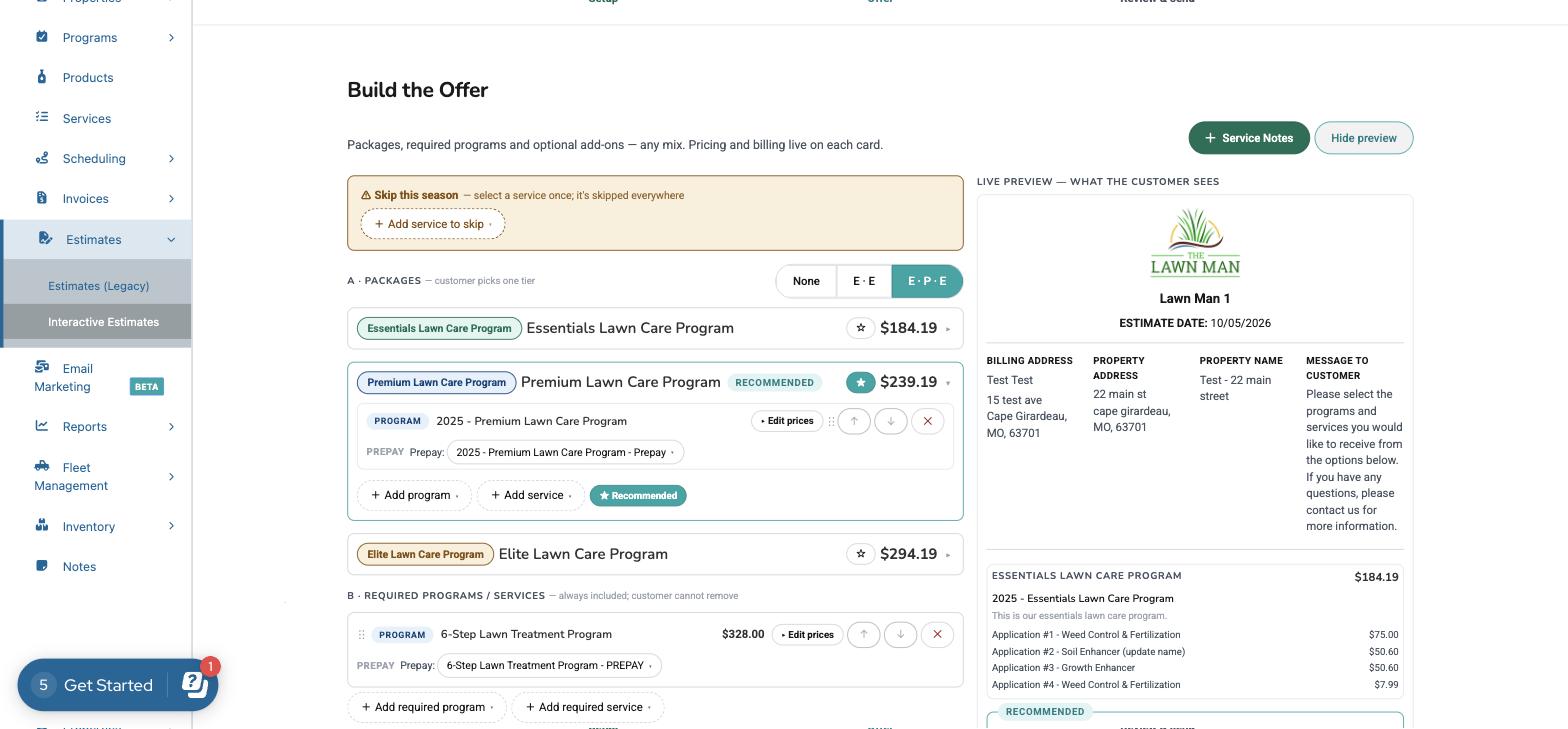
This is where you decide what the customer can choose. Pricing and billing live on each card, so you can see and adjust everything in one place.
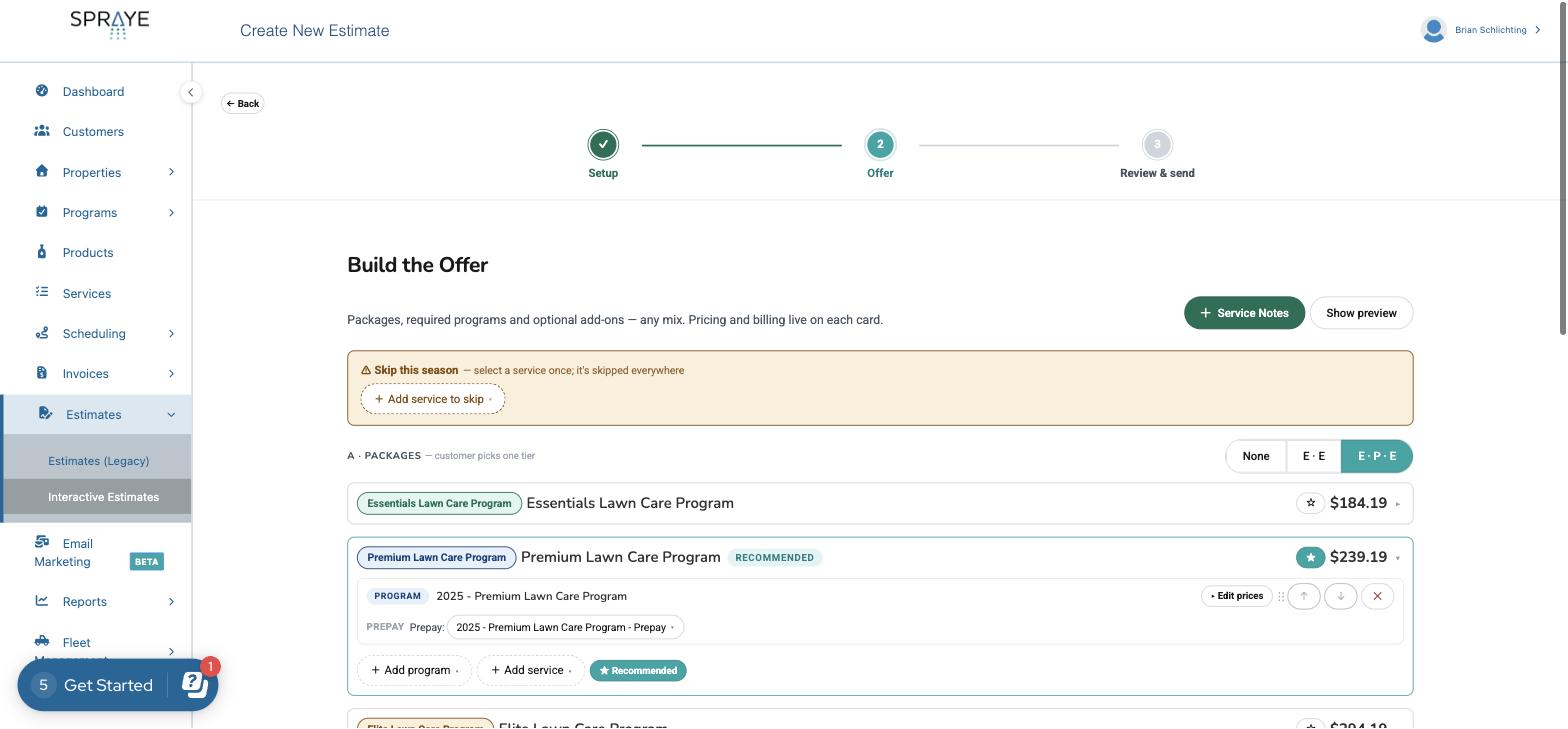
Skip this season
Click + Skip services and tick each service that shouldn't be performed this season. The list stays open and is searchable, so you can tick several at once. Each skipped service shows as a chip next to the button. To stop skipping one, untick it in the list or click ✕ on its chip. A skipped service is skipped everywhere on the estimate.
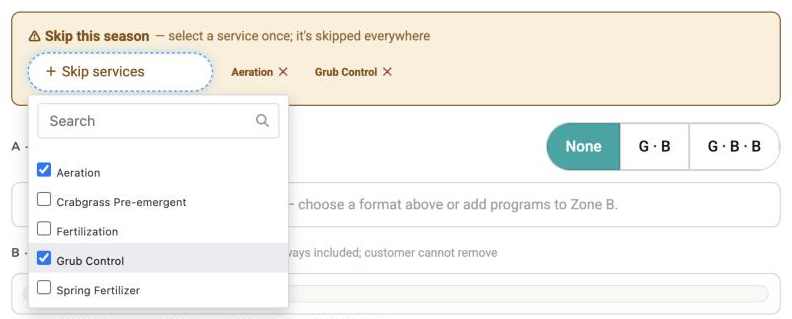
A · Packages (customer picks one tier)
Packages let the customer choose one tier, such as Good / Better / Best. Use the toggle on the right to show None, two tiers or three tiers. The toggle labels use the first letter of each tier name (for example E·P·E for Essentials · Premium · Elite).
- Click a package to expand it and add programs or services to that tier.
- Click the ☆ star to mark a package as Recommended. It's highlighted for the customer.
- Use the ↑ / ↓ arrows to reorder items, or ✕ to remove them.
B · Required Programs / Services
Items here are always included. The customer cannot remove them. Use + Add required program or + Add required service.
C · Optional Add-Ons
Items here are extras the customer can add or remove, such as grub control or aeration. Use + Add program or + Add service.
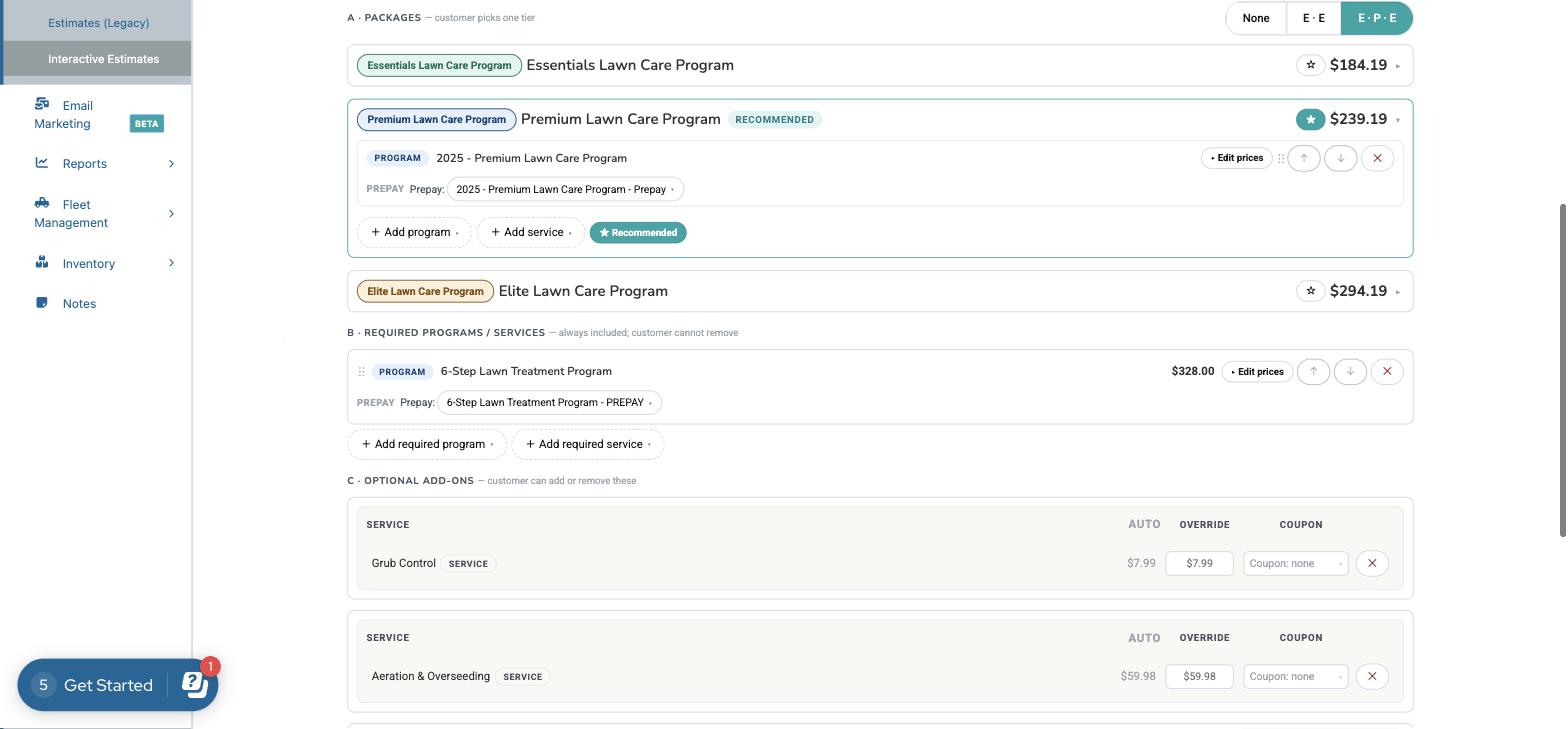
Adjusting prices and coupons
Click Edit prices on any program to see each service's price:
- Auto: the price SPRAYE calculated for this property.
- Override: type a different price for this estimate.
- Coupon: apply a coupon to an individual service.
For programs that have a matching prepay program, the Prepay dropdown shows which prepay program is used if the customer chooses to prepay.
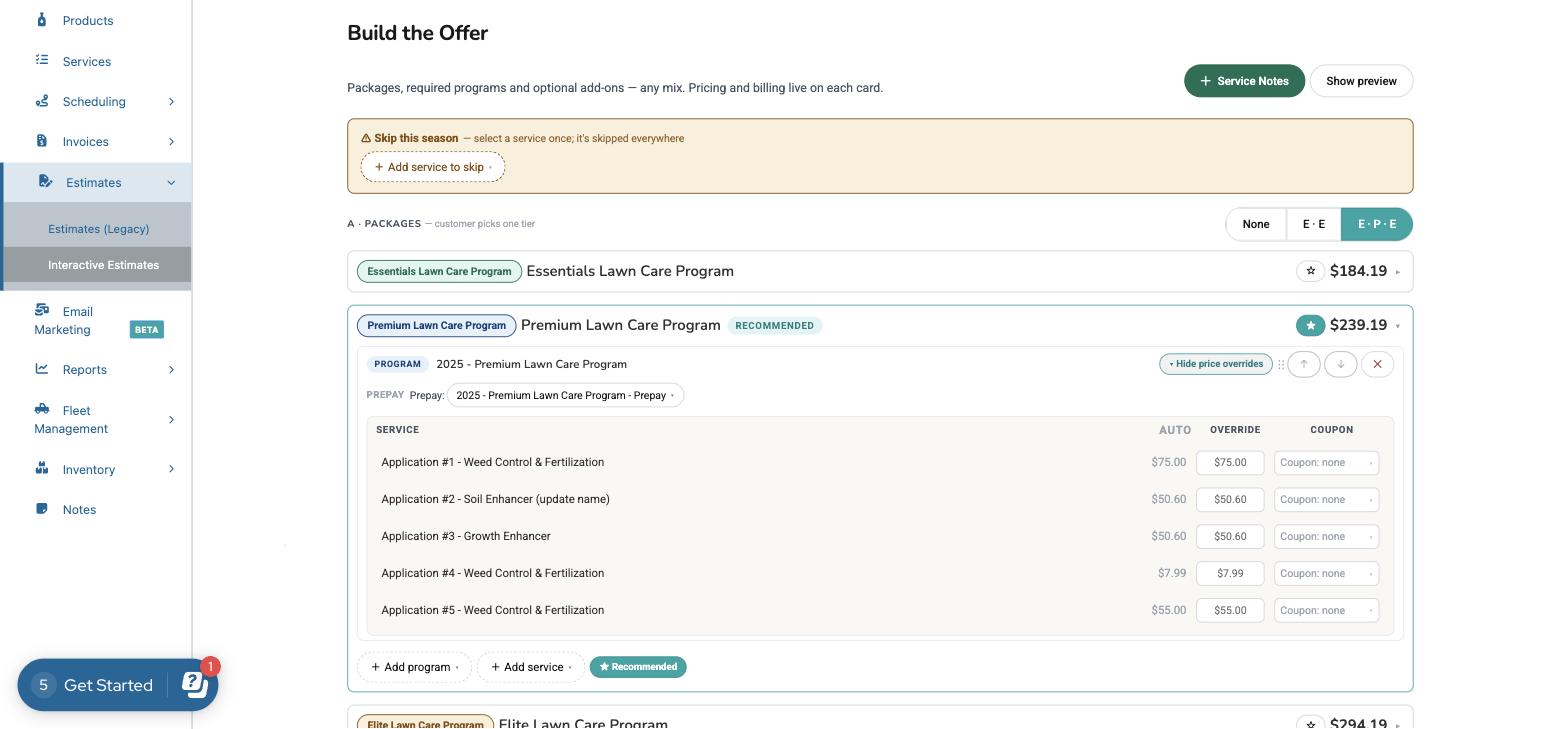
Service Notes and Live Preview
- + Service Notes: add service-specific notes to the estimate.
- Show preview: opens a live preview of exactly what the customer will see. It updates as you make changes.
Click Next: Review & send → to continue.
Step 4. Review & Send
The final step shows the estimate exactly as the customer will receive it, with a summary of the billing methods offered.
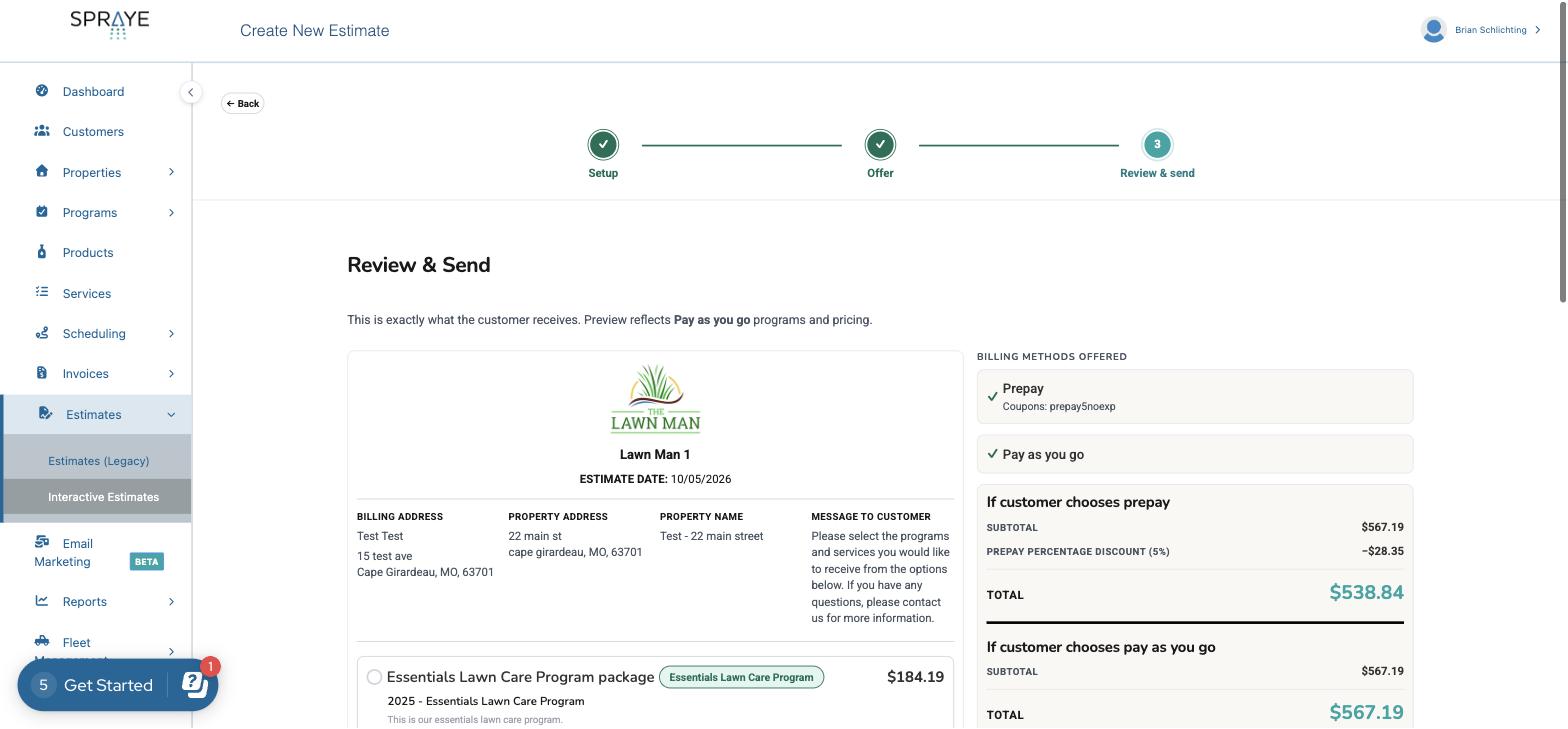
On the right, SPRAYE shows the totals for each billing option you offered, for example If customer chooses prepay (including any prepay discount) and If customer chooses pay as you go. Use this to double-check pricing before you send.
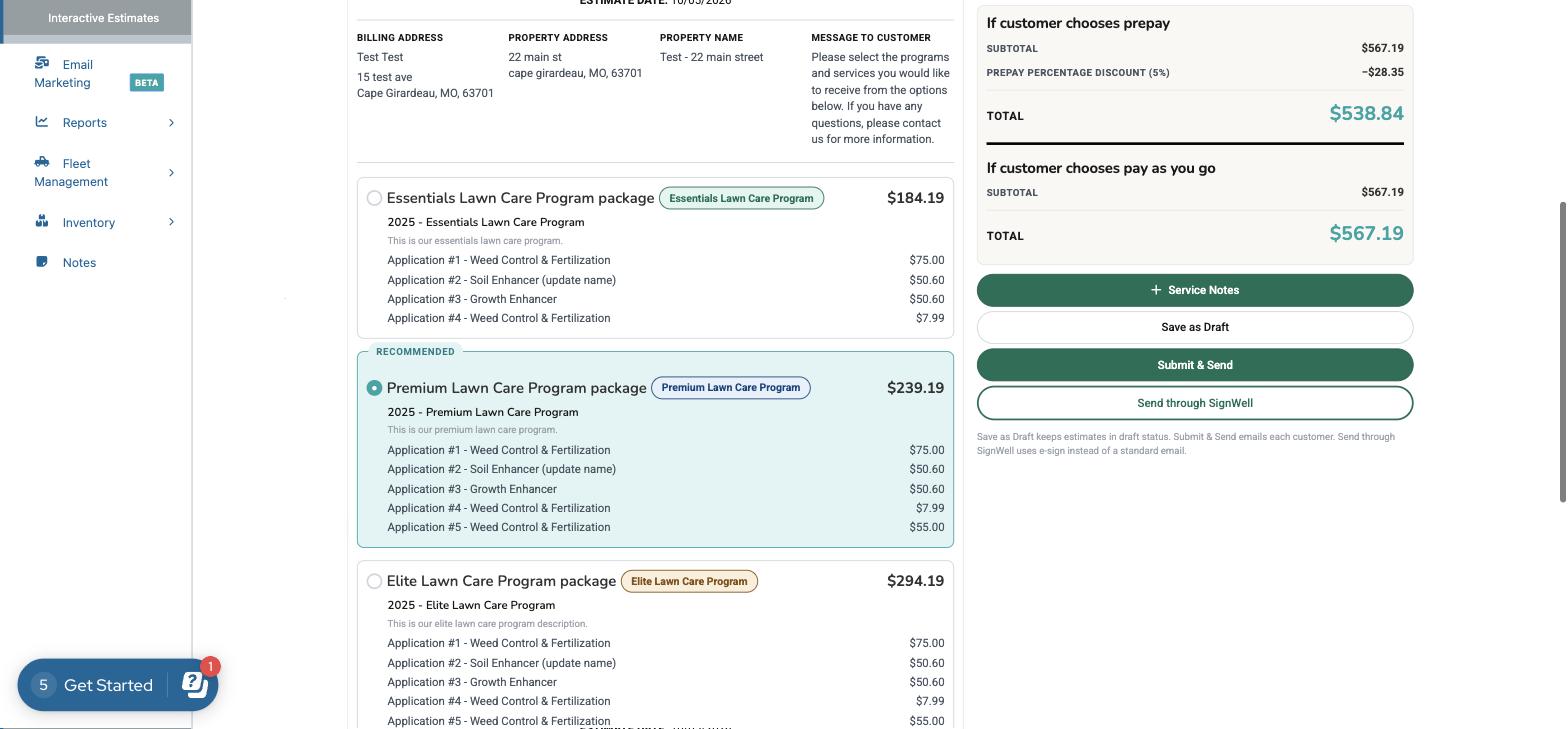
When you're ready, choose how to send it:
- Save as Draft: keeps the estimate in draft status so you can finish it later.
- Submit & Send: emails the estimate to the customer.
- Send through SignWell: sends the estimate for e-signature instead of a standard email.
Tip: Save Draft and Exit is available on every step, so you can stop at any point without losing your work.
Sending Estimates in Bulk
To send the same offer to multiple properties, choose Bulk – multiple properties on the Setup step.
- Use the search and Filters to find the properties you want, then check them individually or use Select all.
- Build the offer once on the Offer step. It applies to every selected property.
- If needed, override prices for individual properties.
- Review and send. SPRAYE creates a separate estimate for each property.
Because bulk estimates go to many customers at once, we recommend previewing a few properties before you click Submit & Send.
FAQs
- Do I have to use a template? No. Click Build manually on the first screen to start from scratch. Templates are simply the fastest way to start.
- Will my existing templates and estimates still work? Yes. Your existing Interactive Estimate templates appear in the template list, and estimates you've already sent are not changed.
- What's the difference between Packages, Required and Optional Add-Ons? Packages: the customer picks one tier. Required: always included and can't be removed. Optional Add-Ons: the customer can choose to add them.
- Can I change the price for just this customer? Yes. Click Edit prices on the program and enter an Override, or apply a Coupon to an individual service. Overridden prices carry over to the customer's property when the estimate is accepted.
- Why don't I see the Monthly installments option? Monthly Installments must be set up for your company, and the program must have Offer Monthly Installment Billing enabled. See Monthly Installment Billing: Getting Started.
- What does "Skip this season" do? Any service you add there is skipped everywhere on the estimate, so you don't have to remove it from each program individually.
- How do I see what the customer will see? Click Show preview while building the offer, or check the Review & Send step, which shows the estimate exactly as the customer receives it.
- Can I accept estimates on behalf of customers in bulk? Use the bulk accept option on the main Interactive Estimates list.
- What is "Send through SignWell"? It sends the estimate for electronic signature through SignWell instead of a standard email.
Need Help?
If something doesn't look right, or you're unsure how to set up a particular estimate, please contact SPRAYE Support. We'd also love to hear about workflows or situations you think we haven't considered yet.