
When a technician clicks Start Service on a property, Spraye logs the initial job_start_time and captures real-time environmental data (temperature, humidity, wind speed, and wind direction).
If a technician starts a service prematurely or needs to reset the timer and weather metrics, they can use the Restart Service feature to clear the original data and capture a fresh snapshot.
How to Restart a Service
Once a service has been started, the Start Service button is automatically replaced by the Restart Service button on the technician's screen.
- Click Restart Service.
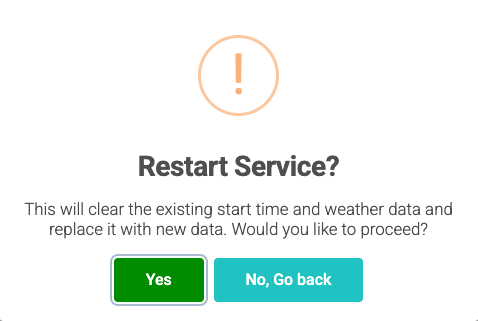
- A confirmation prompt will appear:
"This will clear the existing start time and weather data and replace it with new data. Would you like to proceed?" - Select your action:
• Yes: The system clears previous data and captures new real-time values.
• No, Go Back: Cancels the request and preserves the original start time and weather entries.

Data Reset Breakdown
Confirming a service restart permanently overwrites the following fields with current real-time data:
| Field Name | Action on Restart |
|---|---|
| job_start_time | Overwritten with the exact timestamp of the restart confirmation. |
| temp | Updated to the current temperature. |
| humidity | Updated to current humidity levels. |
| wind_speed | Opens a prompt for the technician to manually re-enter current wind speed. |
| direction | Updated to current wind direction. |
Supported App Layouts
The Restart Service option is accessible across standard field workflows:
- Default Layout: Standard multi-application service views.
- Standalone-Service Layout: One-off or independent service views.
Note: The restart option is intentionally omitted from the Sales-Visit-Only layout, as sales visits do not record service start times or weather tracking.
Key Distinction: Restarting vs. Reopening a Job
- Restarting a Service (Technician Screen): Resets the clock and weather metrics for an in-progress service that has been started but not yet completed.
- Reopening a Service (Admin Dashboard): Admin-only functionality used to modify or adjust a service that has already been fully completed and submitted. For details on reopening completed jobs, refer to the Adjust Completed Services guide in the admin portal.