
The Revenue By Service Type Report categorizes and totals your business revenue according to specific service classifications (such as Lawn Treatment, Mosquito, or Landscape). This report is designed to show actual money collected during the selected date range, helping you evaluate which service lines are actively driving cash flow.
Note: All revenue metrics displayed on this page do NOT include sales tax.
Filter Options
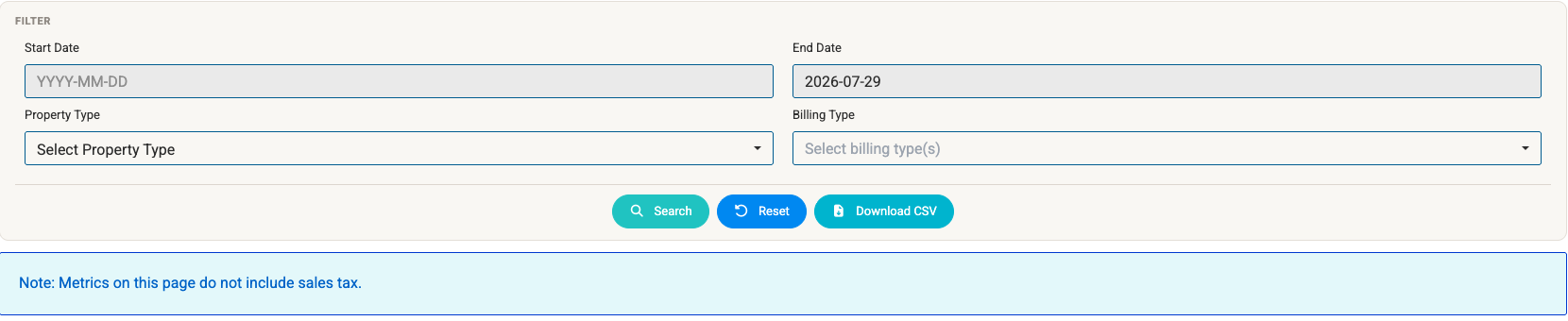
You can narrow down the data displayed using the filters at the top of the report:
- Start Date / End Date: Specify the date range (
YYYY-MM-DD) to view actual revenue collected within a particular timeframe. - Property Type: Select a specific property classification from the drop-down menu (e.g., Residential vs. Commercial).
- Billing Type: Filter revenue by the payment structure or billing method assigned to the services.
Action Controls
- Search: Updates the table according to your selected filter criteria.
- Reset: Clears all active filters back to system defaults.
- Download CSV: Exports the current report dataset into a spreadsheet file for external reporting.
Understanding the Report Table
The main table breaks down revenue into three primary columns:
| Column Header | Description |
|---|---|
| Date | The date range during which the displayed revenue was collected. |
| Service Type | The assigned Service Name Type category (e.g., Weed Control, Landscape, Lawn Treatment). |
| Amount | Total actual money collected for that service category within the specified date range. |
Defining & Customizing "Service Name Type"
For revenue to populate correctly under the Service Type column in this report, each service must have its Service Name Type designated in its service settings.
You can also create custom service types if you would like to track revenue at a more granular level (e.g., separating Aeration or Tree & Shrub from general Lawn Treatment).
How to Assign or Add a Service Name Type:
- Navigate to your Services list in the admin dashboard.
- Click to edit an existing service (or create a new service).
- Locate the Service Name Type drop-down field on the service details screen.
- Select an existing classification or create/add a new service type if you need more detailed granular tracking.
- Save your service settings.
Important: If a service does not have a Service Name Type assigned, collected revenue from that service will not be categorized under this report.