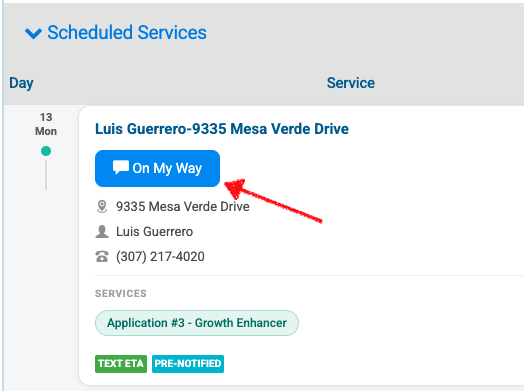
Technicians can send direct updates, notes, and custom messages to clients using three specific workflows built into the mobile/field interface: Service Completion Notes, Pre-Start Emails, and the "On My Way" Text Modifier.
Method 1: The Service Completion Email
You can allow technicians to leave a custom note that automatically sends to the client as soon as a job is completed. This requires an admin to update the global email template first.
Step 1: Admin Setup (One-time)
- Navigate to your Settings or Communications Dashboard.
- Open your Service Completion Email Template.
- Insert the following dynamic field tag into the body of the template where you want the tech's message to appear:
{TECHNICIAN_MESSAGE} - Save the template.
Step 2: How the Tech Uses It
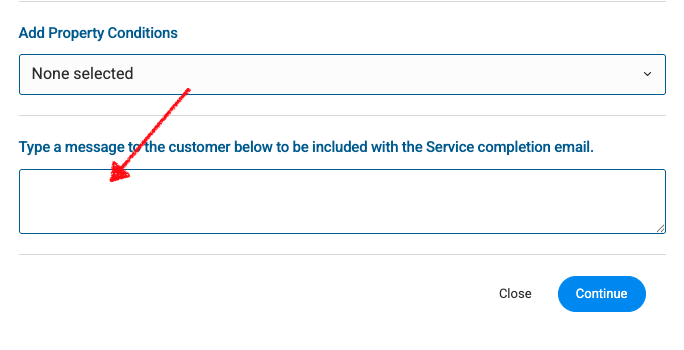
- When completing a job on their device, the technician will see a designated text field for notes/comments.
- Whatever text the technician types into this space will dynamically populate inside the
{TECHNICIAN_MESSAGE}placeholder and email itself directly to the client upon job completion.
Method 2: Sending a Pre-Start Email
If a technician needs to message a client before beginning the work, they can do so directly from the individual stop screen.
- The technician opens the specific client Stop Screen on their device.
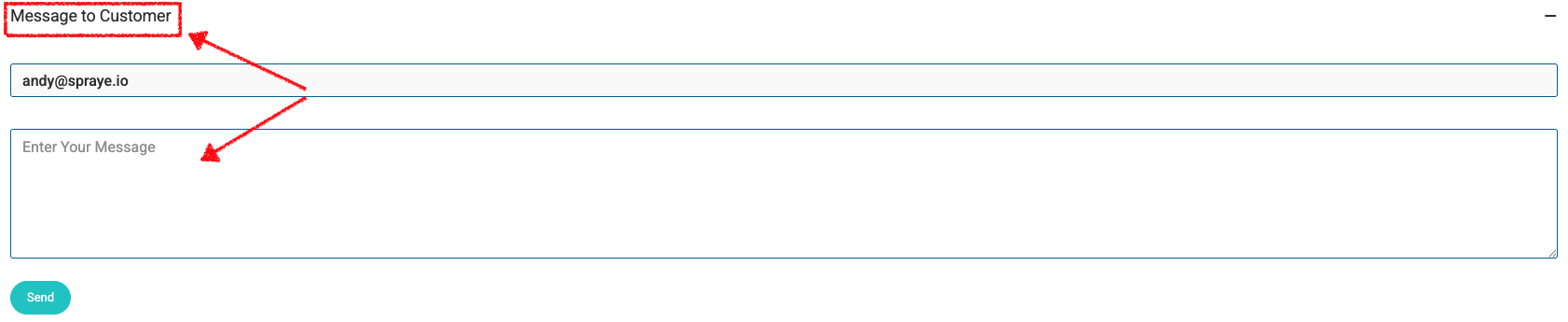
- Before tapping "Start," they select the option to Message to Customer.
- They can type their message and send an email directly to the customer right from that screen.
Method 3: Texting via the "On My Way" Feature
Technicians cannot freely text clients outside of system triggers, but they can leverage the "On My Way" text functionality to send custom SMS messages.
- From the stop or route screen, the technician selects the "On My Way" Text option.
- Customizing the Text: While the feature is named "On My Way," the text box is entirely editable. Technicians can delete the default prompt and type any custom message they need to communicate.
- They can send this text at any point during the day, effectively allowing them to SMS the client whenever necessary.