
Staying on top of your sales pipeline requires knowing exactly when a customer last received a proposal. The Last Sent Date feature automatically tracks every digital touchpoint for your Interactive Estimates, allowing you to monitor communication timelines, optimize your follow-up workflows, and filter out-of-date quotes with precision.
How the Last Sent Date Updates
You do not need to manually log when you contact a customer. The Last Sent Date column on your Interactive Estimates dashboard updates automatically across three distinct system actions:
- Manual Dashboard Sends: Anytime an office user manually dispatches an estimate via email or text message directly from the main Interactive Estimates screen.
- Initial Creation Dispatches: When an estimator completes the quote-building process and elects to send the estimate immediately to the client.
Filtering Estimates by Last Sent Date
To help you run targeted follow-up campaigns, such as finding all estimates sent during a specific week or identifying quotes that have gone unanswered for over a month, you can use the built-in date range filter.
Step-by-Step Instructions:
- Navigate to the Interactive Estimates page from your main dashboard.
- Locate the Filter toolbar at the top of the table.
- Click the Last Sent filter.
- Select or input your desired Date Range (defining both a Start Date and an End Date).
- Click Apply to refresh your list.

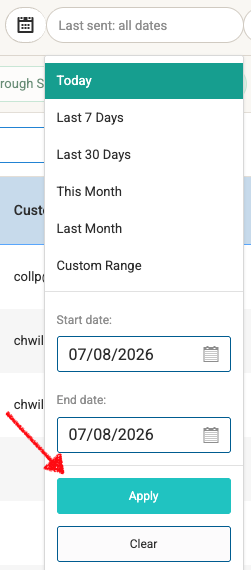
System Default Setting: By default, this filter is configured to Show All. Your interactive estimate pipeline will display all quotes regardless of their timeline unless you explicitly define a specific date range filter.
Common Use Cases for This Filter
- Weekly Pipeline Reviews: Filter for estimates sent between Monday and Friday of the previous week to ensure your sales team makes a second-touch phone call.
- Clearing Out Old Estimates: Filter for a date range from six months ago to quickly batch-select and archive expired or stale estimates that were never accepted.
Need Extra Help?
If you have questions about setting up automated follow-ups or navigating your dashboard filters, reach out to our support team at support@spraye.io.