
If a customer has multiple properties, under separate billing accounts, they do not need separate email logins for each property. As long as all of their accounts are registered under the exact same email address, they can easily access and manage all properties from a single customer portal login.
How it Works for the Customer
When the customer logs into their portal, they will initially see the information for one primary property. To view invoices or details for their other locations, they can switch profiles directly from the dashboard:
- Locate the Selector: In the upper right-hand corner of the screen, there is a dropdown menu showing the current property/account name.
- Select the Property: Click the dropdown arrow to view the full list of properties linked to that email address.
- Switch Views: Select the desired property from the list, and then click the blue Go button next to it.
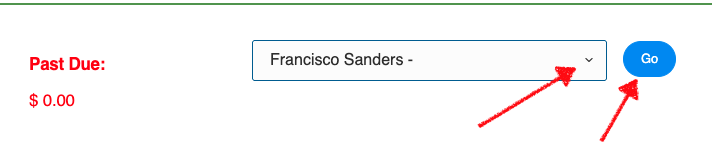
The portal will refresh, allowing the customer to view outstanding invoices, service history, and property details for that specific location.
Troubleshooting: What if a property is missing?
If your customer logs in but cannot see one of their properties in the dropdown menu, check the following in your Spraye dashboard:
- Verify the Email Address: Ensure that the email address on the missing account exactly matches the email on the other properties (watch out for typos or accidental spaces).
- Duplicate Profiles: If the customer was accidentally created as separate accounts with completely different email addresses, you will need to update them to use the identical email address to trigger this linking feature.
Tip: Remind your multi-property clients that they just need to use the dropdown and click Go to switch between accounts whenever they need to make payments for different locations!
Still having trouble linking a customer's properties? Please contact Spraye Support for further assistance.