
This article provides two methods to trigger and send out customer notification emails if services were accidentally scheduled while your global notifications were turned off.
Overview
If your global notifications were disabled when you built or generated your schedule, your customers will not have received their "Service Scheduled" emails. Simply turning the notifications back on will NOT retroactively send them.
To force the system to send these alerts out, choose one of the two methods below. Before starting, ensure your Global Notifications are turned back ON in your settings.
Method 1: The Remove-and-Reassign Method (Recommended)
This method forces the system to register the jobs as freshly scheduled appointments, which automatically fires your standard "Service Scheduled" notification template.
Step-by-Step:
- Unassign the Services: Navigate to scheduled Routes page. Select the affected services and and click the Remove from schedule button at the top of the table. This will move the selected services back to your Unschedule Services list.
- Reassign to the Route: Bulk assign those exact same services right back onto the technician’s route for that day.
- The Result: Because your notification settings are now active, moving them back onto the route triggers the system to send the original Service Scheduled email to every customer on that list.
Method 2: The "Reschedule Notification" Override
If you have already optimized your route and do not want to remove the jobs, you can use the route editing tool to reschedule the service.
Step-by-Step:
- Navigate to the Schedule Routes page for the target day.
- Select the individual jobs and click on the Edit button at the top of the table. You can reschedule the jobs for the same day.
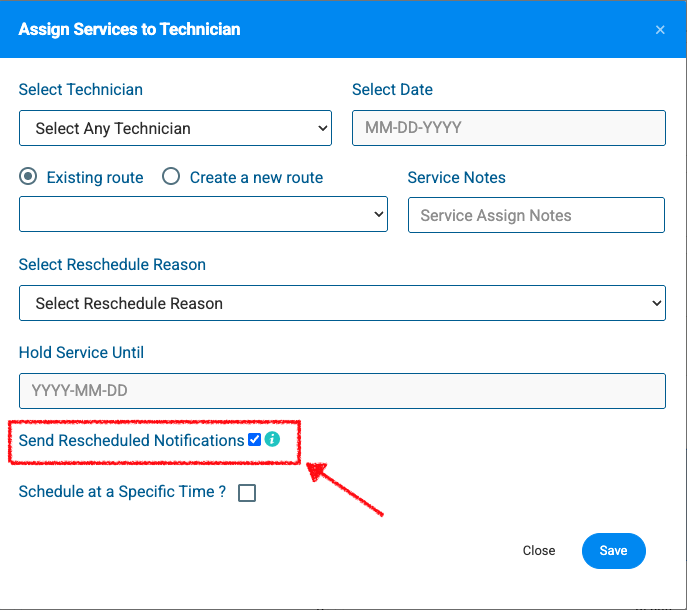
- Make sure to check the box that says "Send Reschedule Notifications" and click Save to confirm.
- The Rescheduled Service notification will be sent to any jobs that were rescheduled.
Important Distinction: This method will send your platform's Rescheduled Service email template rather than the Service Scheduled template. Use this method only if you have your Rescheduled Service notification active and are comfortable with the wording of that specific email template.