
This article guides you through the process of safely editing an invoice and explains how changes affect your financial reporting.
Editing an Invoice
To modify an invoice, you must first locate it within your billing dashboard:
- Navigate to Invoices -> Active Invoices from the left-hand navigation menu.
- Use the search bar or filters to find the target invoice by Invoice Number, Customer Name, or Date.
- Click the Invoice Number next to the invoice line item to open the invoice and edit it.
What Fields Can Be Edited?
Once inside the invoice editor, you can modify several key components:
1. Line Item Modifications
- Cost: You can manually overwrite the cost of a service line item.
- Adding Line Items: Click on the Service Name dropdown to add an additional service.
- Deleting a Service: Click the garbage can icon next to an item to delete it.
2. Discounts
- Apply Discounts: Click on the Add Coupons dropdown and select a coupon from the list to apply a discount.
3. Date and Notes
- Invoice Date: The Invoice Date can be adjusted by picking a custom due date using the calendar picker.
- Notes: Enter any notes that you want to appear on the printed invoice in the Notes/Instructions section.
Saving and Finalizing Changes
After completing any edits, make sure to click the Submit button at the bottom of the page to save the changes.
Removing a payment made in error
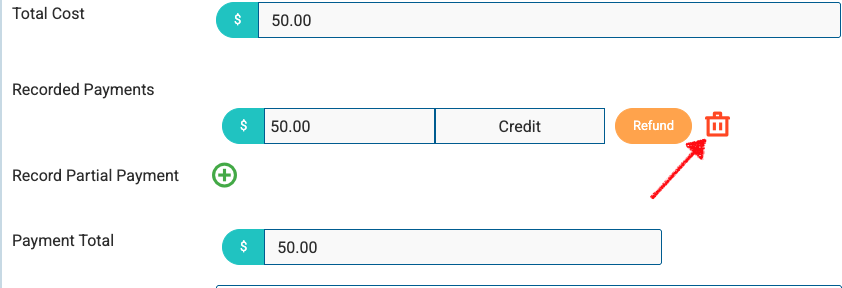
If an invoice was paid in error you can click the Red trash can button next to "Recorded Payments" to delete the payment. The will remove the payment and return the invoice to a Payment Status of Unpaid.
Correcting a recorded payment
If a cash, check or "Other" payment was recorded with the wrong date, check number or note, you don't need to delete it. Click Edit under the payment in the Recorded Payments section, make the change and click Save. Card, ACH, SprayePay, credit and monthly installment payments can't be edited, and a payment that has been sent to QuickBooks Online or refunded keeps its date. See Add Payments to Invoices → Setting and Changing a Payment Date for details.
Best Practices & Important Guardrails
⚠️ Important Note on Paid Invoices: Once an invoice has been marked as Paid, it becomes locked to preserve accurate tax and financial auditing trails. If you need to issue a refund or change the amount on a paid invoice, you must first void or delete the associated payment record.
- Check the Total: Always review the final calculated balance at the bottom of the editor before hitting save to ensure manual discounts or price updates calculated correctly.
- Historical Data Consistency: Editing an invoice only changes that specific billing document. If a service price was wrong because of a faulty program setup, remember to update the master pricing under Service Settings so future invoices generate correctly.