
To improve data visibility and asset management directly from the map interface, you can view the total number of properties and the combined property square footage for selected properties within any given service area.
Enhanced Feature: Service Area Hover Box
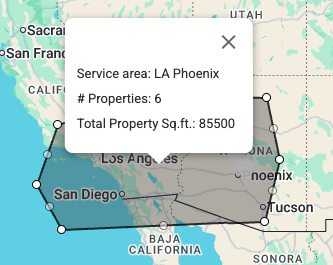
The white informational hover box displays real-time property metrics. When you click on a service area on the map, the pop-up box will display the following three data points:
- Service Area Name: The name of the service area you are viewing.
- # of Properties: The total count of selected properties currently mapped within that specific service area boundary.
- Property Sq. ft.: The combined total square footage of those selected properties.
How to View the Data
- Navigate to the Property List page.
- Locate the main map on the screen showing your defined service areas.
- Click on any existing service area boundary.
- Review the white pop-up box to instantly see the service area's name, total property count, and total square footage without needing to run separate reports.
Benefits
- Quick Estimating: Instantly gauge the total treatable square footage of an entire service area at a glance.
- Resource Allocation: Easily see how dense a service area is by checking the property count, helping you balance technician workloads more effectively.
- Unified Experience: Replicates the familiar functionality of the routing map, keeping the user experience consistent across different dashboard screens.