
When a payment is returned or fails after it has already been recorded, you can handle the correction in Spraye using a simple two-step process: delete the failed payment record to revert the invoice to unpaid, and apply a custom fee using a negative coupon modifier.
Follow the step-by-step instructions below to update your records.
Step 1: Delete the Returned Payment
Removing the recorded payment will instantly restore the customer's balance due on that specific invoice.
- Click on the specific Invoice Number on the Active Invoices page to edit the invoice.
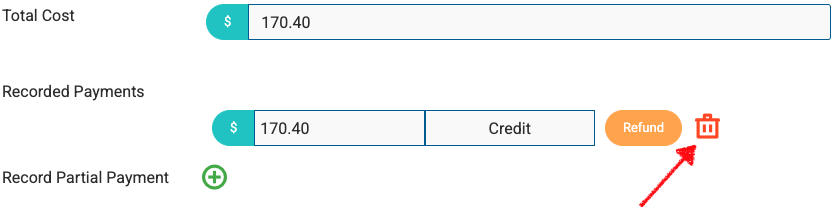
- Inside the invoice view, scroll down the left-hand side panel to the Recorded Payments section.
- Locate the payment that was returned and click the Waste Basket (Delete) icon next to it.
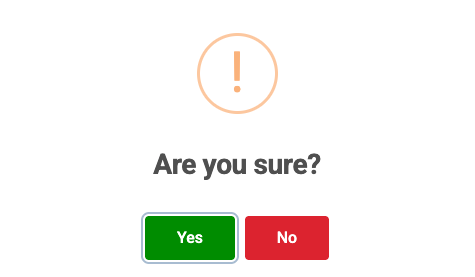
- Confirm the deletion.
Note: The invoice status will automatically revert back to Unpaid, making it active for collection again.
Step 2: Add a Returned Payment Fee
Spraye allows you to pass along return fees by using a unique "negative coupon" function, which adds a set dollar amount to the invoice total rather than discounting it. This option can be used to recoup the amount if you were charged a Returned Payment Fee by your card processor.
Create the Fee in Your Settings (One-Time Setup)
If you haven't created a return fee coupon yet, set it up globally so you can use it anytime:
- Navigate to Global Settings from your main dashboard menu.
- Select Coupons and click Create Coupon.
- Name the coupon clearly (e.g., "Returned Payment Fee" or "NSF Fee").
- In the amount field, enter the fee as a negative number (for example: $-25).
- Save the coupon.
Apply the Return Fee to the Invoice
- Return to the unpaid invoice where you just deleted the payment.
- Locate the Coupon dropdown selector on the invoice.
- Select your Returned Payment Fee (e.g., $-25) from the list.
- Save or update the invoice.
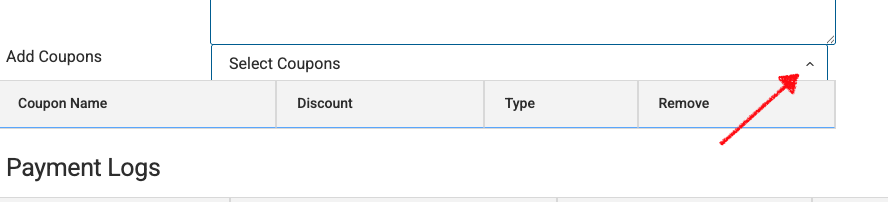
The system will interpret the negative value as an additional charge, successfully adding the fee to the customer's total amount due.