
Viewing Service Pricing from the Technician Screen
Spraye now allows companies to make a customer’s Service Price List visible to technicians while they are working in the field. This gives technicians quick access to service pricing directly from the technician screen, making it easier to answer customer questions about pricing without needing to contact the office.
What is the Service Price List?
The Service Price List shows the services available for a property along with the pricing associated with each service.
This is the same pricing list that is available in the admin view on the Property Profile under the Service Pricing tab.
When enabled for technicians, this list can be accessed from the technician view while viewing a stop or property.
How to Turn On Service Pricing for Technicians
Service pricing visibility for technicians is controlled by a global company setting.
To enable this feature:
- Go to Settings.
- Find the Technician Settings section.
- Check the box labeled Show service pricing on technician screen.
- Click Submit to save your changes.
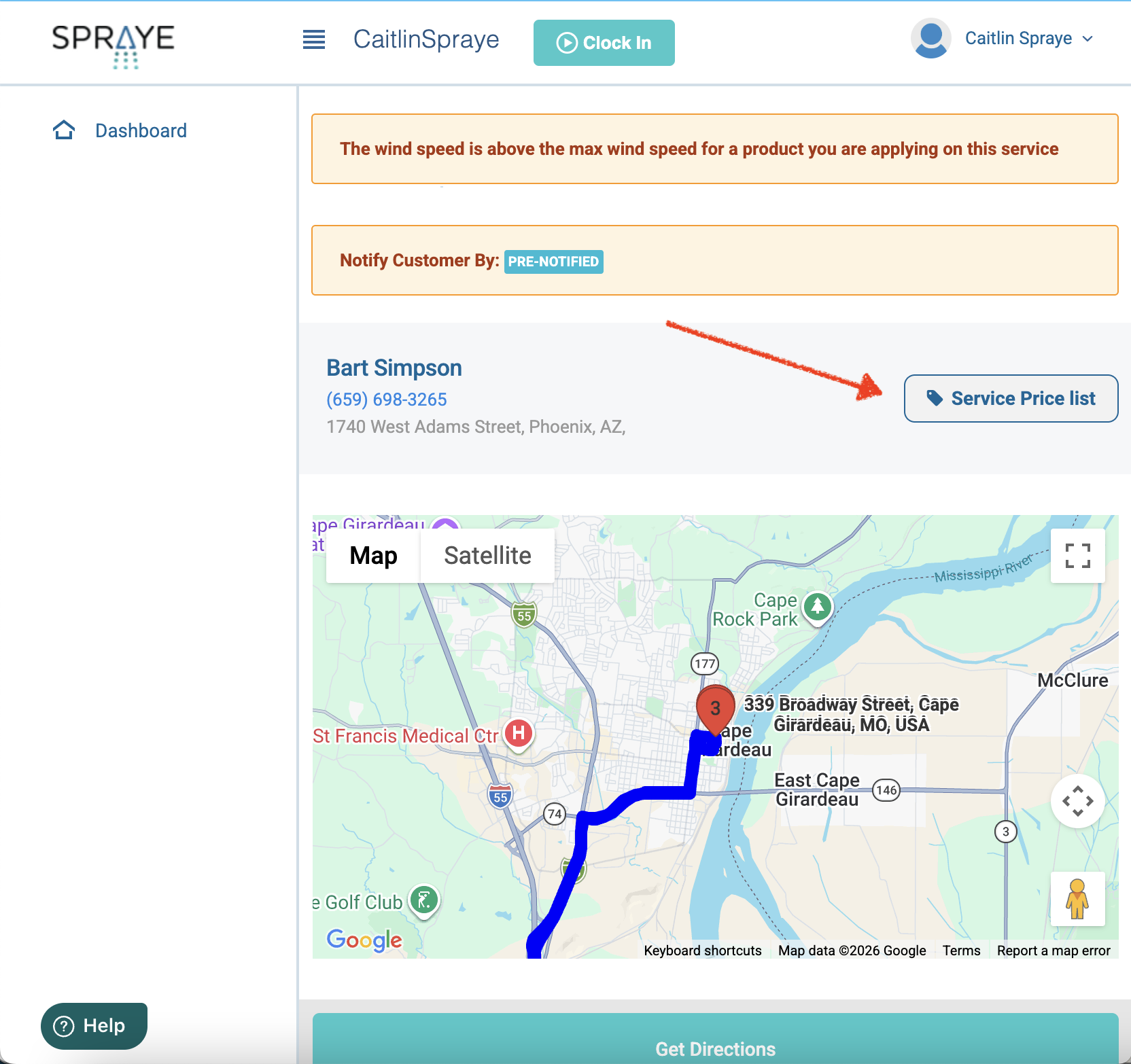
Once this setting is turned on, technicians will see a Service Price List button from the technician screen when viewing a customer/property stop.

How Technicians Access the Service Price List
When a technician is viewing a stop in the technician screen, they can click the Service Price List button.
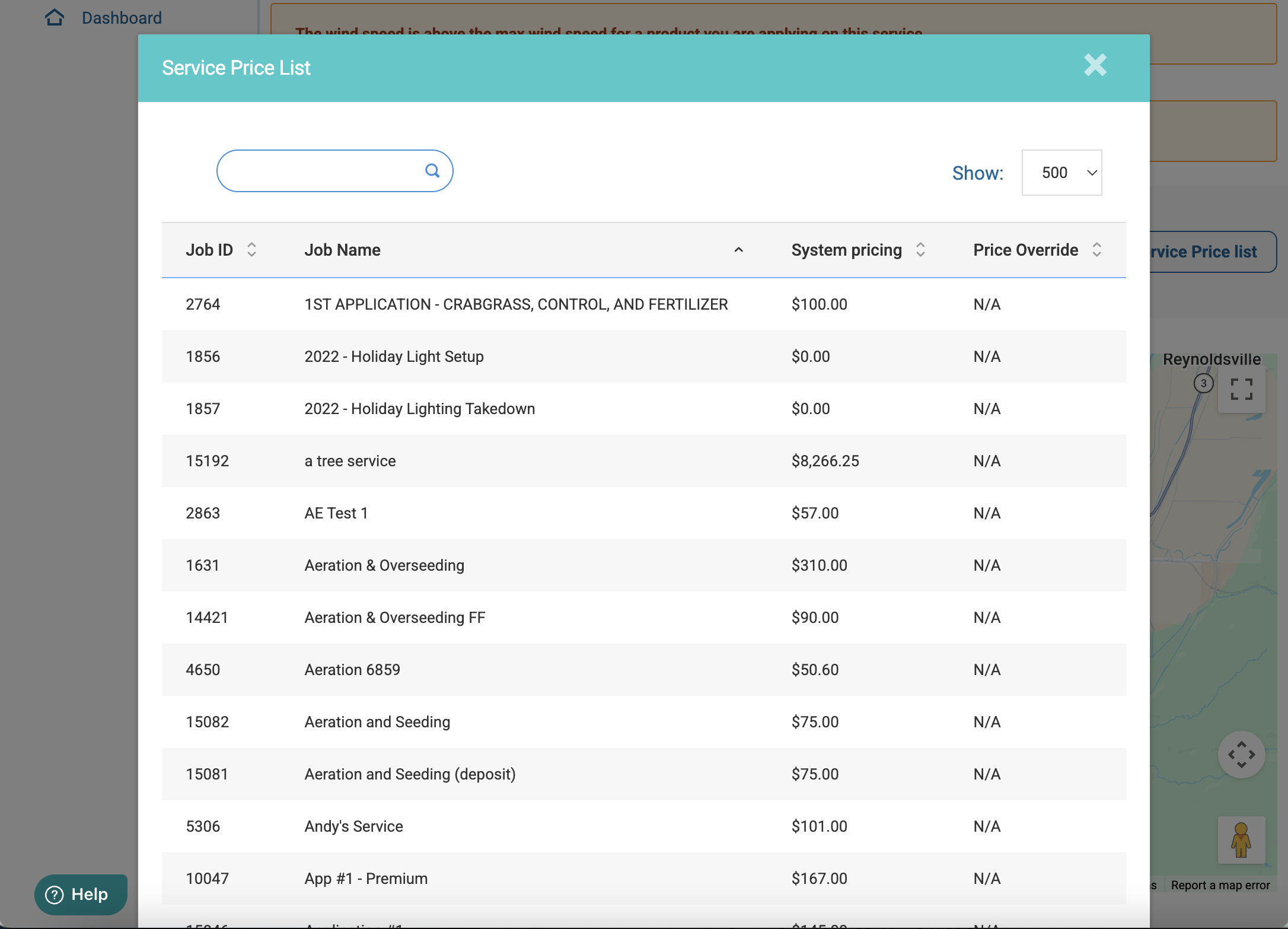
This will open a pop-up window showing the property’s service pricing list.
The list includes:
- Job ID
- Job Name
- System Pricing
- Price Override, if one exists
Technicians can search the list and scroll through available services to quickly find the price for a specific service.
What Pricing is Shown?
The Service Price List displays the property’s pricing using the same information available on the admin side under:
Admin View > Property Profile > Service Pricing
The technician view will show:
- The standard system pricing for each service
- Any price override that has been entered for that property and service
If no price override exists, the Price Override column will show N/A.
Can Technicians Edit Service Pricing?
No. Technicians can view the Service Price List, but they cannot edit service pricing or price overrides from the technician screen.
Price overrides must still be added or edited from the admin view:
Admin View > Property Profile > Service Pricing
When Should This Feature Be Used?
This feature is helpful when technicians need to answer customer questions in the field, such as:
- “How much would it cost to add this service?”
- “What is my price for aeration?”
- “What would this additional treatment cost?”
Instead of calling the office or switching to the admin view, technicians can quickly look up the pricing directly from their technician screen.
Important Notes
- The Service Price List is only visible to technicians if the global setting is turned on.
- Pricing is view-only from the technician screen.
- Price overrides must be managed from the admin view.
- The pricing shown is specific to the property being viewed.
- If no override has been entered, the system pricing will still be shown.
Troubleshooting
- I don’t see the Service Price List button on the technician screen.
Check that the setting Show service pricing on technician screen is turned on in Settings > Technician Settings and that the changes have been saved. - A technician sees the pricing but cannot change it.
This is expected. Technicians can view service pricing, but they cannot edit prices or overrides from the technician screen. - The price looks different than expected.
Review the property’s pricing in the admin view under Property Profile > Service Pricing. If a price override has been entered for that property/service, it will appear in the Price Override column.
