
Overview
Interactive Estimates provide the flexibility to offer targeted discounts on individual services. This allows for more strategic pricing, such as "Buy One, Get One" offers or specific service promotions, without discounting the entire project.
Applying Discounts in the Estimate Builder
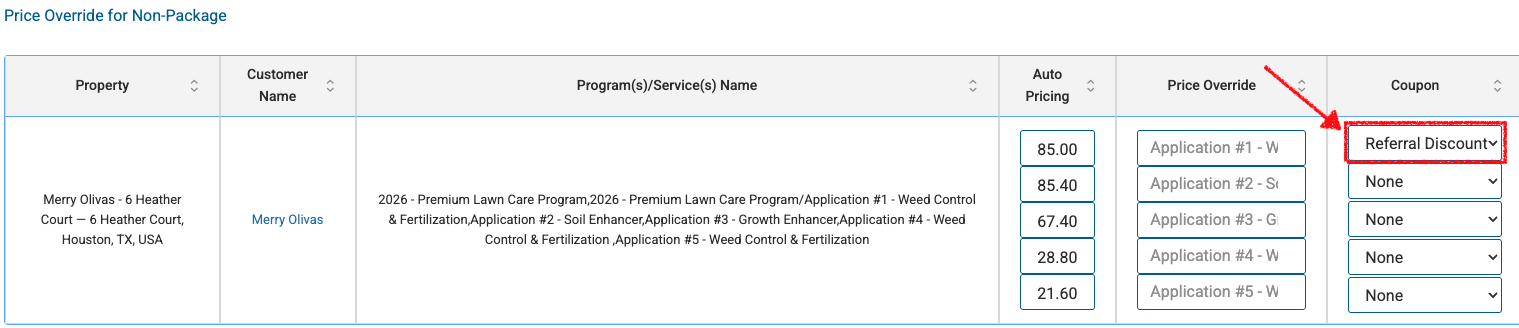
When building a custom estimate, you can apply discounts directly within the Price Overrides section.
How to Add a Coupon to a Service:
Scroll to the Price Overrides table at the bottom of the estimate builder screen.
Locate the new Coupon column.
Click the dropdown next to the specific service or package you wish to discount.
Select the appropriate coupon from your pre-defined list.
Customer View (Preview):
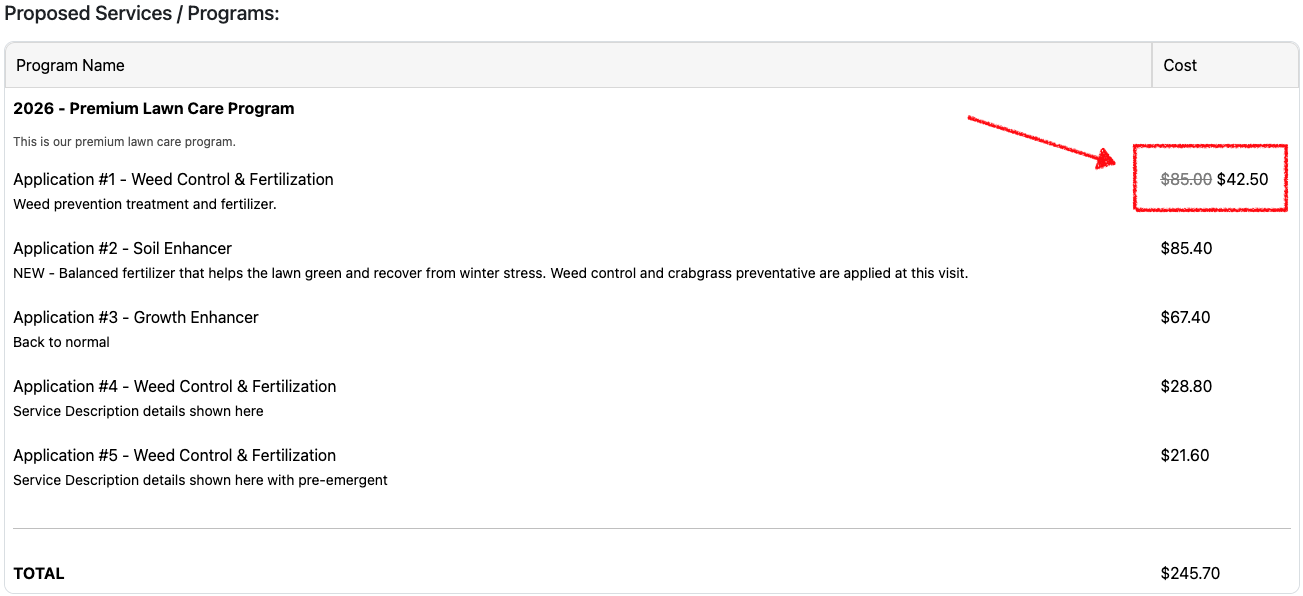
To ensure transparency for the customer, the system automatically formats the discounted items in the estimate preview:
The Original Price will appear with a ~~strikethrough~~.
The New Discounted Price will be displayed clearly next to it.
Setting Up Discounts in Interactive Templates
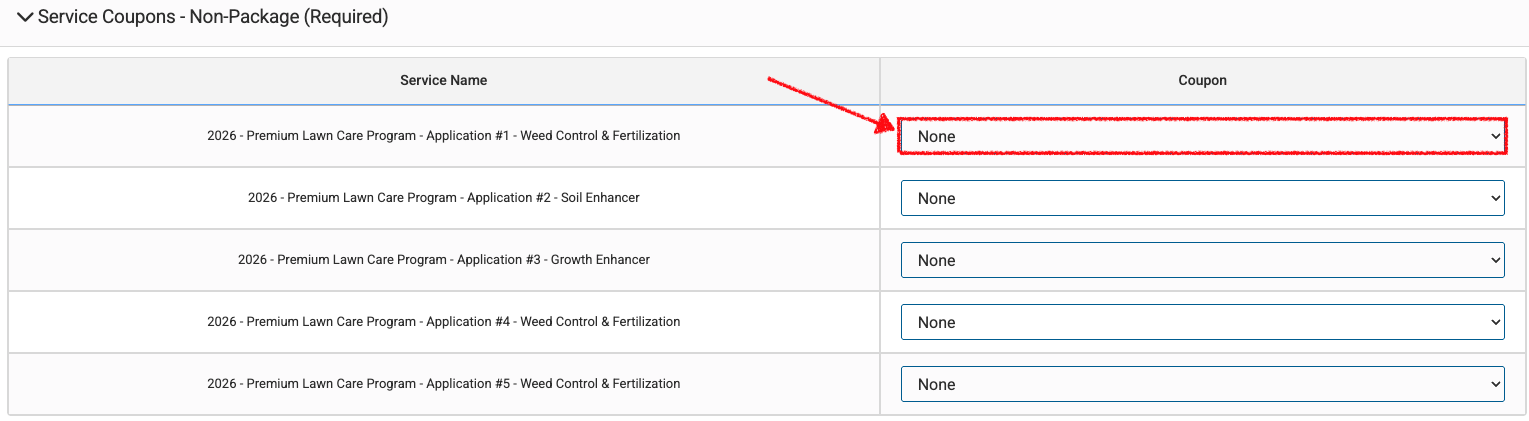
You can also bake these discounts into your Interactive Estimate Templates so they are automatically applied every time the template is used.
Open your Estimate Template.
Expand the Service Coupons section at the bottom of the screen.
Click the dropdown next to the desired services in the table list.
Multi-Property Logic: If you apply a coupon to a service in a template and then select multiple properties for that estimate, the system will automatically apply the coupon to that service for each property selected.
Accepted Estimates & Legacy Views
Post-Acceptance Processing
Once a customer accepts an estimate:
All applied coupons are automatically recorded for accurate financial reporting and tracking.
The Interactive Estimate will be converted into a Legacy Estimate for your records.
Printed Legacy Estimates
To maintain a consistent "paper trail," any service that had an associated coupon will display with a strikethrough on the printed Legacy Estimate. This ensures that even after acceptance, it is clear which services received promotional pricing.
Best Practices
Targeted Upsells: Use line-item discounts to encourage customers to add a "secondary" service they might otherwise skip.
Template Consistency: Update your most-used templates with seasonal coupons to save your sales team time during high-volume months.
Note: Ensure your coupons are correctly configured in your system settings before attempting to add them via the "Add Coupon" button, as only active coupons will appear in the selection list.