
Overview
When a technician rescheduled a stop, the service will automatically be sent to the Unscheduled Services list by default. Technicians can, however, have the ability to place stops directly onto an existing future route or create a new one, mirroring the functionality available on the Admin side.
Admin Setup: Enabling the Feature
By default, this feature is disabled for all companies to maintain strict routing control. To enable it:
Navigate to Global Settings page.
Select the Technician Settings tab.
Locate the field labeled: "Allow technician to move stops/services to a different day".
Check the box to enable.
Click Save.
Note: If this setting remains unchecked, the "Reschedule" button will function as it previously did, sending all stops directly to the Unscheduled list.
Technician Workflow
When a technician is at a stop and clicks the Reschedule button at the bottom of their screen, the system will now follow a two-step process:
Step 1: Destination Selection
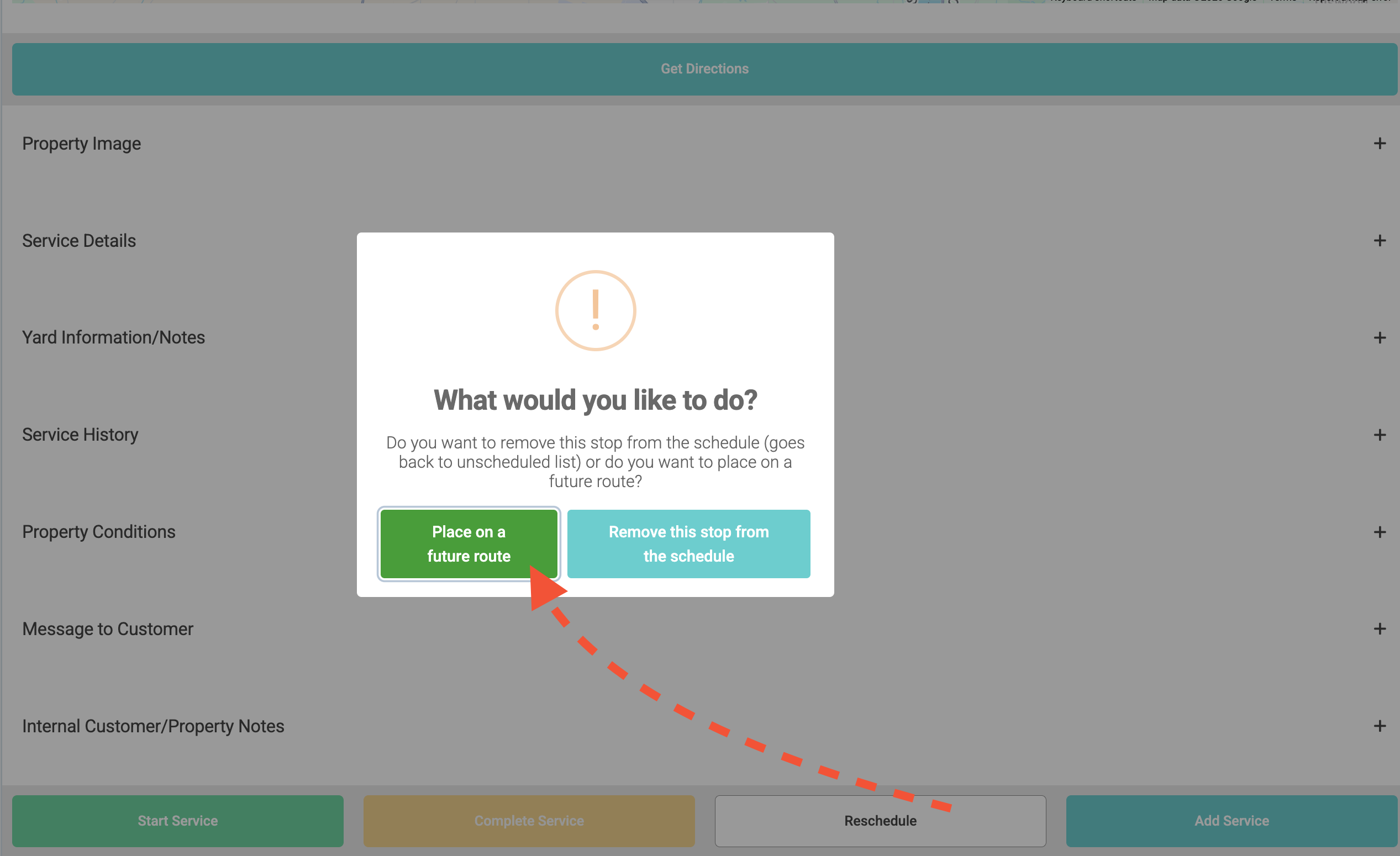
A prompt will appear asking the technician to define the destination of the service:
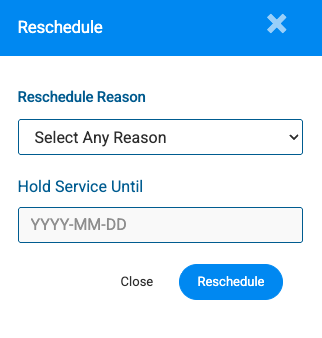
Remove from Schedule: This sends the stop back to the Unscheduled list (standard behavior). Optionally you can select a Reschedule Reason or hold the service until a particular date.
Place on a Future Route: This opens the advanced rescheduling options.
Step 2: Routing Details
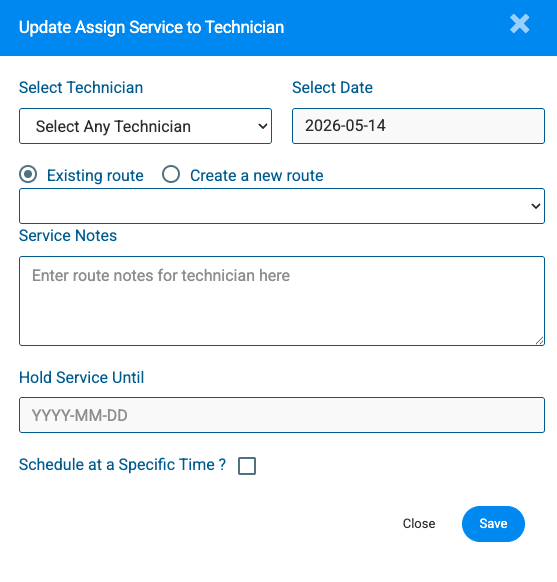
If the technician chooses to place the stop on a future route, the modal will expand to include the same fields found on the Admin dashboard:
Route Selection: Options to add the stop to an existing route (selecting by date/technician) or create a new route for a future date.
Key Benefits
Reduced Admin Backlog: Services are handled immediately in the field rather than piling up in the unscheduled queue.
Real-Time Accuracy: Future routes are updated instantly, providing a more accurate view of the upcoming week’s workload.
Customizable Control: Admins who prefer centralized scheduling can simply leave the feature turned off.
Troubleshooting
The technician doesn't see the option to pick a future route? Ensure the checkbox in Global Settings > Technician Settings is active. If the setting is off, the technician will only see the standard "Reason" box and the stop will always go to the Unscheduled list.