
Overview
The Bulk Edit Tags feature is designed to save time by allowing you to update property tags in batches. This tool is conveniently located on the Unscheduled Services page and can be accessed in both Table and Map view.
Key Logic
To prevent data clutter, the system includes a "unique property" safeguard:
De-duplication: If you have selected multiple services for the same property, the system will only apply or remove the tag once for that property.
How to Use Bulk Edit
Accessing the Tool
Navigate to the Scheduling -> Unscheduled Services page. You will find the Bulk Edit Tags button next to the Search, Delete Services and Skip button at the top of the tabe
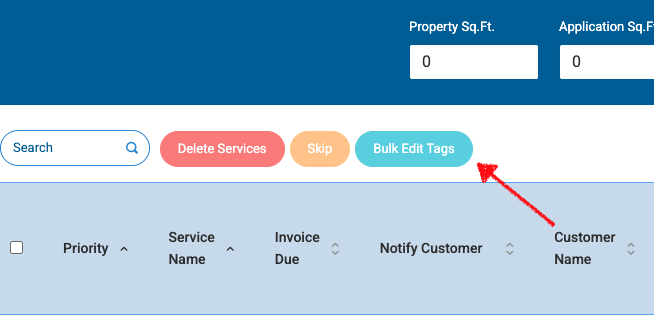
Selecting an Action
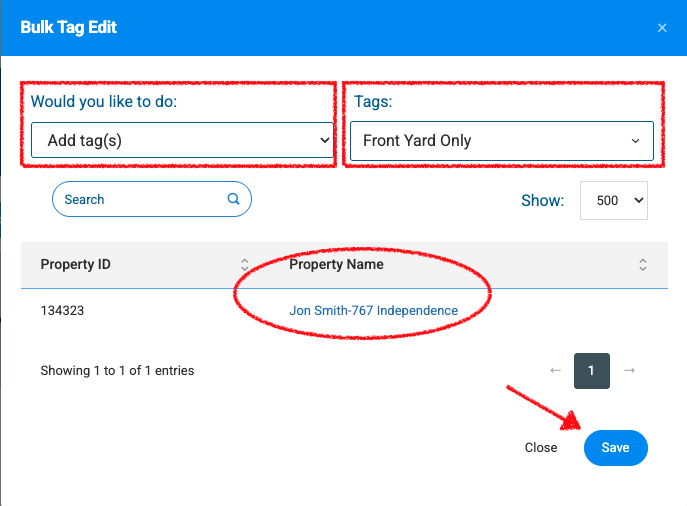
Upon clicking the button, a modal will appear offering two primary functions:
Add Tags: Choose one or more tags to append to the selected properties.
Remove Tags: Choose specific tags to strip from the selected properties.
Applying Changes
Select the desired tags from the dropdown menu.
Review the list of affected properties.
- Click Save to apply the changes or Close to cancel any changes.
Frequently Asked Questions
What happens if I select three different services for "123 Main St" and then use Bulk Edit? The system recognizes these belong to a single property. The tag will be added to the property record once, ensuring your tag counts and filters remain accurate.
Can I add and remove tags in the same action? Currently, you must complete the "Add" or "Remove" workflow separately to ensure data integrity.
Best Practices
Audit Before Applying: Double-check your property selection in the summary view before clicking Bulk Edit.
Standardize Naming: Use the Bulk Edit tool to clean up inconsistent tagging (e.g., removing an old "2023_Lead" tag and adding "2024_Client" in bulk)