
Overview
Businesses can now offer customers the option to include a tip during the payment process. This feature is highly customizable and can be toggled on or off via the global settings.
Reporting Notice: Tips are collected by your payment processor along with the payment. You can see each tip, and the tip total for any date range, on the Payment Log report (see Tracking Tips via the Payment Log Report below).
Configuration & Setup
Enabling Tips Globally
To allow customers to tip, you must first enable the feature on the Main Settings page:
Navigate to Global Settings > Credit Card Processing.
Locate the toggle for Allow tips to be included on payments.
Once toggled on, a tipping option will appear across all payment pages (Invoices, Customer Portal, Estimates, etc.).
How Customers Tip
Once enabled, a new field labeled "Tip (optional)" will appear on all payment screens.
Flexibility: Customers are not limited to percentages; they can enter any custom dollar amount they wish to provide.
Availability: This field is present anywhere a customer can make a payment, including:
Digital Invoices
The Customer Portal
Payments when accepting Interactive Estimates
Invoices
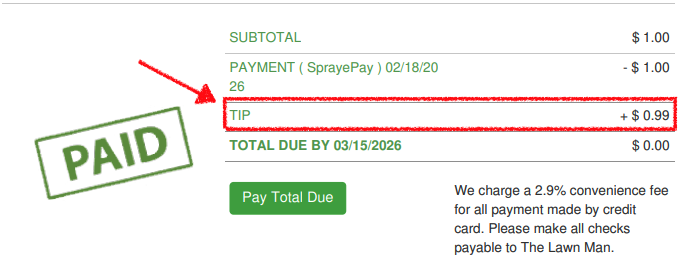
Tips will show in the payment section at the bottom of invoices.
Removing a tip from an Invoice
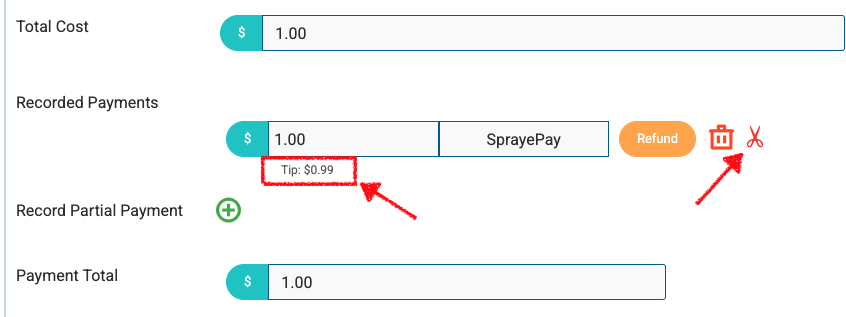
A tip can be removed from an invoice by clicking on the scissors icon to the right of Recorded Payments.
Tracking Tips via the Payment Log Report
To reconcile your daily, weekly, or monthly financial records, you can track all collected customer tips using the Payment Log report. This report provides a detailed breakdown of transaction types, convenience fees, and tips.
How to Access Tip Data in the Payment Log
- Navigate to the Reports tab in your main menu.
- Select the Payment Log report from the list.
- Use the date filters to select your desired reporting period (e.g., This Week, Last Month, or a custom range).
- Click Search to run the report with your filter criteria.
Understanding the Tip Data Columns
When reviewing the Payment Log for tip allocations, pay close attention to the following key columns:
- Tip: This column displays the specific dollar amount added by the customer as a gratuity. If no tip was given, it will display
$0.00. - Value: The amount applied to the invoice. It does not include the tip or the convenience fee.
Note: Click the Tip column header to quickly sort the list and bring all tip entries to the top.
Pro-Tip for Accountants
You can export the filtered Payment Log report to a CSV or Excel spreadsheet. Once exported, you can quickly use the SUM function on the Tip column to calculate your total tip liabilities for payroll processing. The bottom row of the report also shows the tip total for the transactions shown.
FAQ
Can I set suggested tip amounts (e.g., 15%, 20%)? Currently, the system provides an open field for the customer to enter a custom amount, allowing them total flexibility.
Will tips show up on my end-of-month revenue reports? Tips are not considered service revenue, so they will not appear in your revenue reports. Use the Payment Log report for tip totals.