
Overview
If you don't want to use the directly integrated payment processors in SPRAYE (Fiserv or SprayePay), you can still give customers a way to pay their invoices online using a Pay Now button. This option connects an external payment processor (such as Stripe or Square) to your invoices, but has some limitations compared to using Fiserv or SprayePay.
NOTE: We recommend using Fiserv or SprayePay to get the most out of SPRAYE.
How to Set Up a Pay Link
- Navigate to your Global Settings page.
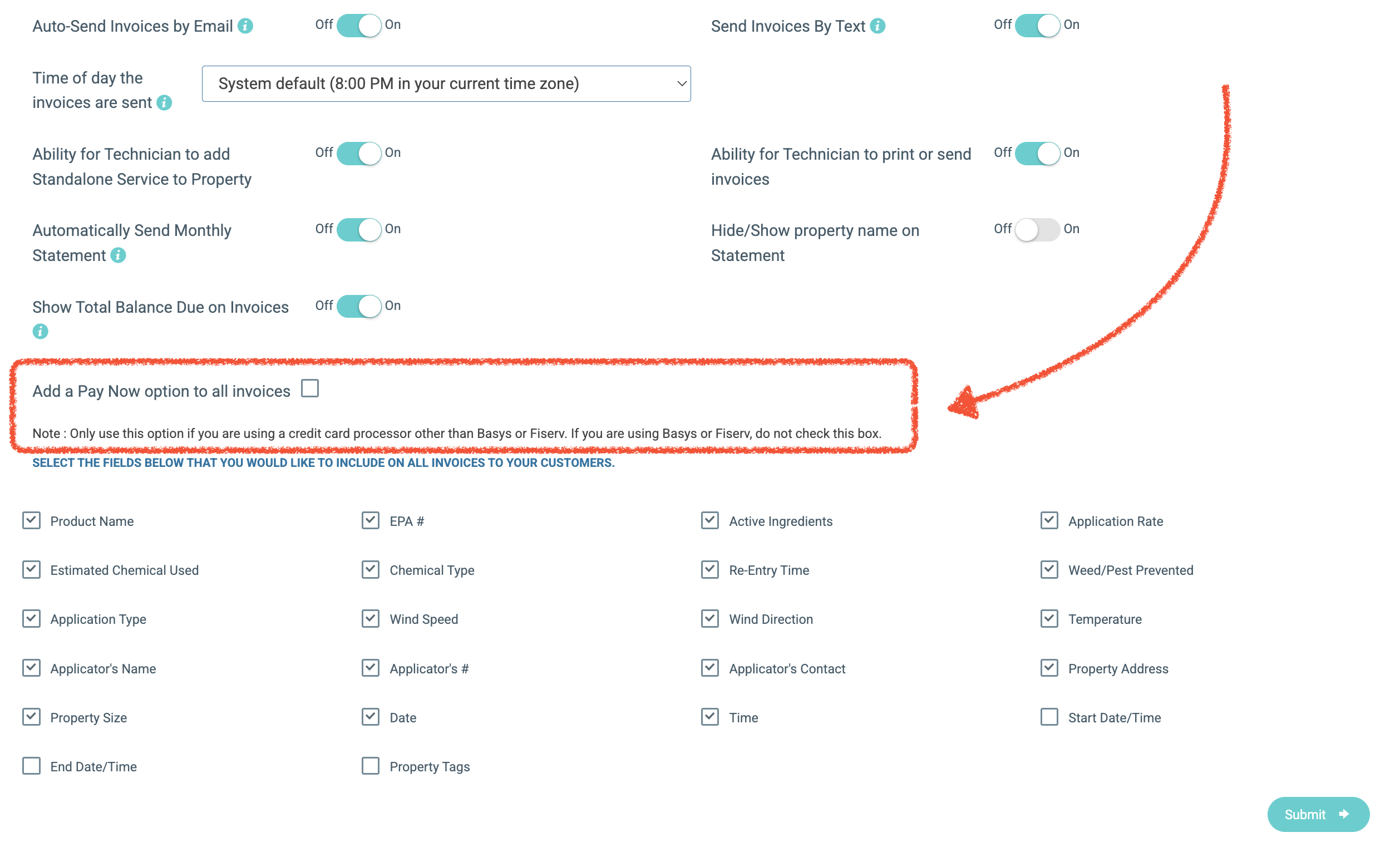
- Scroll down to the Invoice section.
- Check the box next to "Add a Pay Now option to all invoices."
- Enter the pay link generated from your external payment processor (e.g., Stripe or Square).
Once saved, a Pay Now button will appear on all invoices, allowing customers to complete payment through your external processor. A customer doesn't need to have an email saved in order to pay using a Pay Link
Important Limitations
Because this method links to an outside payment processor rather than a direct integration (Fiserv or SprayePay), the following limitations apply:
- Invoices are not updated automatically. When a customer pays, SPRAYE will not reflect that payment. You will need to manually mark the invoice as paid in SPRAYE after receiving payment.
- The following features are unavailable with a pay link:
- Saving a card on file
- Auto Pay
- Requiring a card on file at the estimate level
When to Use This Option
This setup is a good workaround if you need a basic online payment option for customers and do not want to use the directly integrated payment processors SPRAYE has to offer: Fiserv or SprayePay. For full automation and access to all payment features, a direct integration is recommended.