
We have added the ability to upload Property Profile Photos to customer accounts.
This feature is designed to help technicians—especially new hires—visually confirm they have arrived at the correct location before beginning work. Once a photo is added, it will appear prominently at the top of the property profile and on the technician's screen during service visits.
How to Add a Property Photo
You can add a photo from the office (Web Portal) or directly from the field (Technician Screen).
Method 1: From the Property Page
Navigate to the Properties tab in the main menu.
Select the specific property you wish to update.
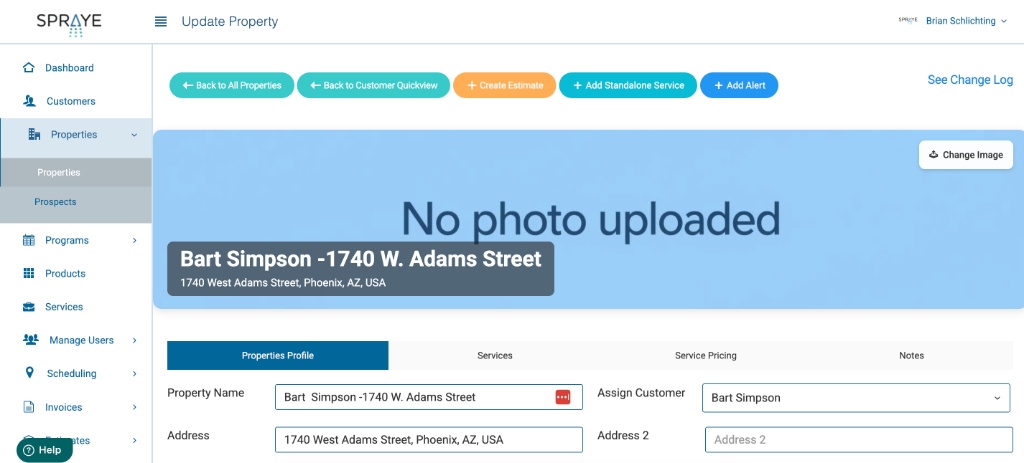
Locate the blue banner at the top of the "Property Profile" tab.
Click the white Change Image button in the top right corner of the banner.
Select and upload your photo.
Click "Save" at the bottom of the page.
Method 2: From the Technician Screen
Technicians can add or update photos while on-site.
Open the scheduled service/property on your mobile device.
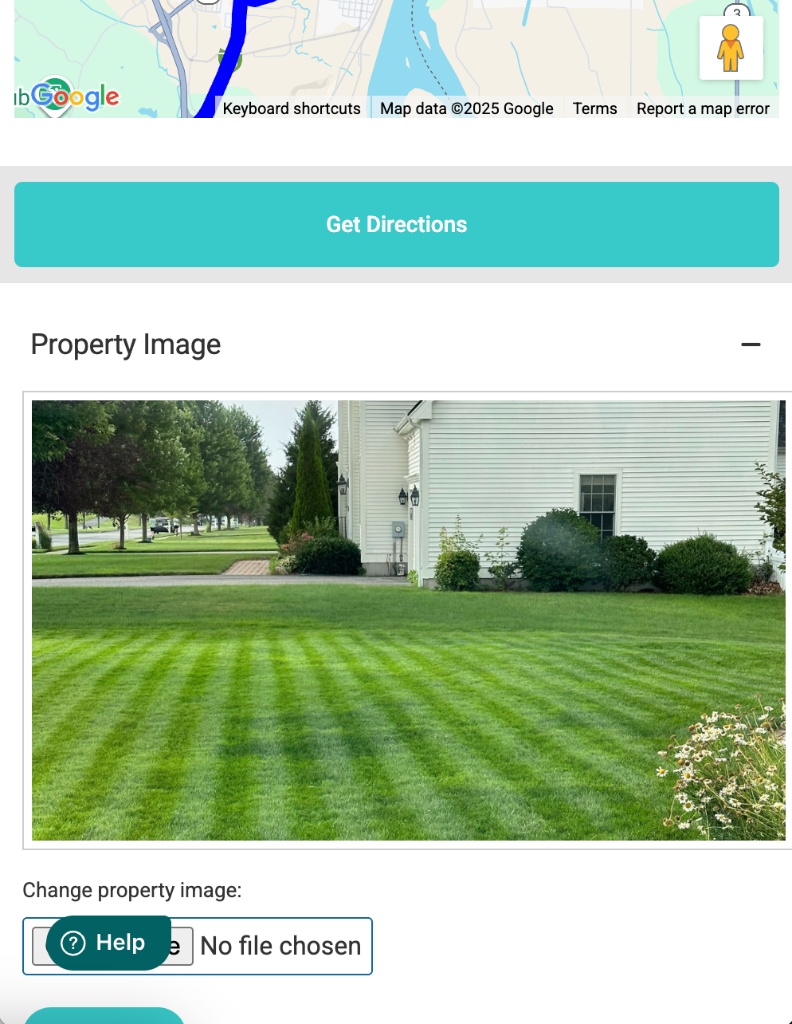
Scroll down to the Property Image section (located below the map/directions).
Tap the Choose File button next to "Change property image."
You can choose to take a new photo with your camera or upload an existing one from your gallery.
Where the Photo Appears
Once uploaded, the image serves as the visual header for that property. It will verify the location for technicians every time they click to complete a service at that address.
Managing Property Profile Photos
Property Profile Photos cannot be permanently deleted from the system; they can only be replaced by uploading a new image.
How to Change a Property Profile Photo
To update the current image, simply upload a new photo directly to the property profile. The newly uploaded file will automatically overwrite and replace the existing one.
Troubleshooting: New Photo Not Appearing?
If you have just updated a Property Profile Photo but the old image is still displaying, this is almost always caused by browser caching.
Browsers frequently store (or "cache") images locally to help pages load faster, which can temporarily prevent your screen from displaying the newly uploaded image.
How to Fix It
To force your browser to display the updated photo, you need to clear your browser's cache. You can do this quickly by using a Hard Refresh keyboard shortcut while on the page:
- Windows / Linux: Press
Ctrl+F5(orCtrl+Shift+R) - Mac (Safari): Press
Option+Command+E(then refresh the page) - Mac (Chrome / Firefox): Press
Command+Shift+R
If a hard refresh does not resolve the issue, you can clear your browsing history and cache through your specific browser's settings menu.