
This article provides a step-by-step guide on how to manually generate invoices for your customers within Spraye. Use this method when you need to bill a customer immediately for one-off services, custom jobs, or miscellaneous charges that aren't tied to an automated program.
Overview
The Add Invoice screen allows you to select an existing customer, assign specific services, apply discounts, set pricing overrides, and establish custom dates before saving or sending the billing document.
To manually create an invoice go to the Active Invoices page and click on the New Invoice button at the top of the page.

Step-by-Step Manual Invoice Creation
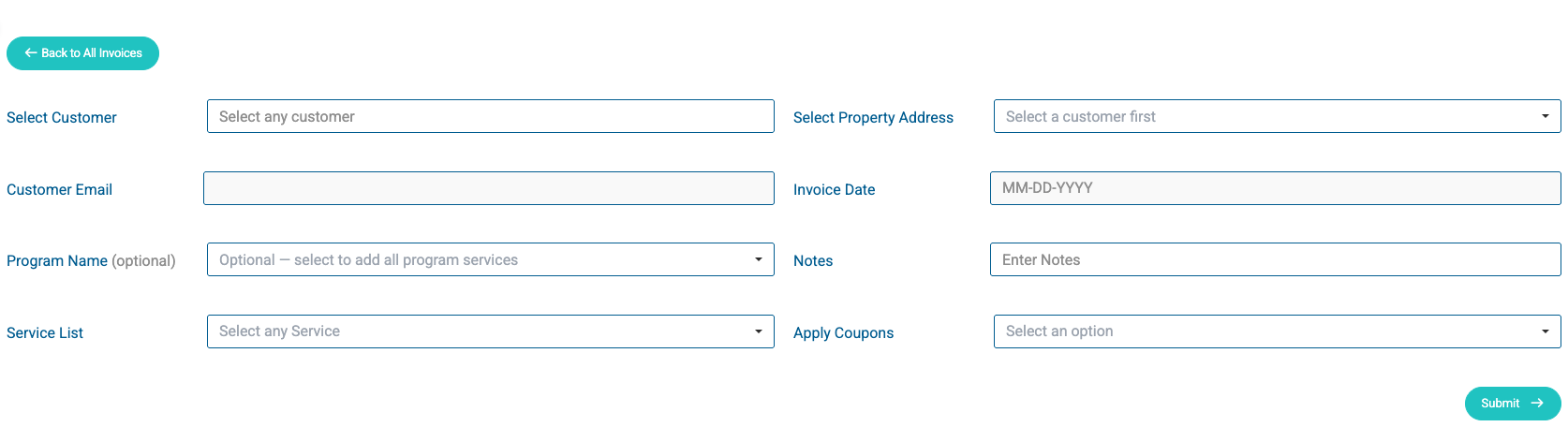
Step 1: Select the Customer and Program
- Customer Search: Click into the Select Customer box at the top left and begin typing the customer's name. Select the correct profile from the list. Once a customer is selected the Customer Email will populate automatically.
- Property: Click on the Select Property Address dropdown and select the property this invoice will be associated with. If the customer selected only has 1 property in their account then there will only be one option.
- Program Name: Click the Program Name (optional) dropdown to associate this manual invoice with a specific program assigned to that property, if applicable.
- Invoice Date: Select the date the invoice is officially issued using the calendar picker.
Step 2: Add and Price Your Services
- Choose the Service: Click the Service List dropdown to select the specific service item. If you selected a program name then the service list will only show services from that program.
- Price Overrides: Enter the price of the selected service. You must enter a cost for every service selected.
- Add Multiple Line Items: Select all services that should be included on the Manual invoice by selecting them one by one from the Service List dropdown.
- Delete a Line Item: If you add a row by mistake, click the trash can icon on the far right of that specific item row to remove it.
Step 3: Apply Coupons or Add Public Notes
- Coupons / Discounts: If you are offering a discount, click the Apply Coupons checkbox to select any coupons that you want to apply.
- Notes: Use the Notes text field to type any notes, disclosures, or special payment instructions. These notes are visible to the customer and will print/display directly on the invoice.
Step 4: Save
Check each line’s cost and the coupons you selected then click the Submit button, at the bottom of the form, to save the manual invoice. Once the invoice is saved you can still edit the invoice to make changes.
Important Limitations & Best Practices
- Existing Customers Only: You must add and save a customer profile in the system before you can generate a manual invoice for them. If this is a brand new client, navigate to the Customers page and click Add Customer to create their profile first.
- Confirm Before Submitting: Double-check your line items and pricing overrides before hitting Submit. Once an invoice is submitted, it will be created with the Sent Status of Draft. Once the Manual invoice has been created then the invoice can be Sent to the customer for payment or the Sent Status can manually be changed to Sent/Active.