
If you have a customer that overpaid for an invoice or wants to pay in advance for services, there are two ways to handle this. You can add a credit to the account on the Update Customer screen by following the steps below, or you can add a Batch Credit using the step-by-step instructions found at the bottom of the following article: Add Bulk Payments
Add Credit on the Update Customer Screen
Step 1: Access the customer account from the "Customers" tab.
Step 2: Click on "Add Credit" at the top of the page.

Step 3: Enter the amount of the credit and the payment type. Then click "Submit"
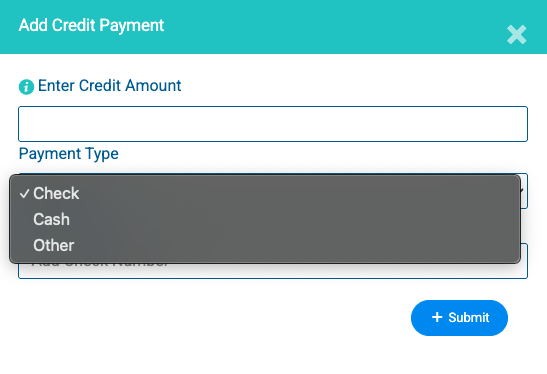
If the option "Check" or "Other" are selected there will be a "Payment Info:" field available to enter the check number or additional info about the payment.
It's possible to process custom payments for any amount here and apply the credit balance directly to the client's account. For step-by-step instructions, see our guide on how to Charge a Customer Credit Card for Any Amount.
After adding a credit the following will happen:
- The credit will be applied to any unpaid, sent invoice(s) until the credit is completely used.
- The credit will show on the customer statement and the credit report.
- The credit will automatically be applied to any invoice whose Sent Status is changed to Sent/Active until the credit balance is fully used. This can be triggered either by sending the invoice or by manually updating its status.
- Any unused credits will show on the Customer Profile screen as an "Available Credit" balance
- If a customer has a credit balance and autopay is enabled, the credit will automatically be applied to their invoice before their payment method is charged.
NOTE:
- Credits are NOT included in revenue numbers until they are applied to invoices.
- You cannot select a specific date when entering a credit. The system automatically timestamps the credit with the current date and time upon submission.
Managing Payments for Non-Active Accounts
Available Credit cannot be added to any customer account with a status of Non-Active.
If you need to process a payment or settle an outstanding balance for a Non-Active customer, you must apply the funds directly to the specific invoice.
How to Process a Payment on a Non-Active Account
To pay an invoice without adding available credit to the account, follow these steps:
1. Locate the Invoice: Navigate to the Active Invoices page and search for the specific invoice number, or view the invoice history directly from the customer's profile.
2. Click the invoice number to edit the invoice.
3. Click the Record Payment button.
4. Enter Payment Details: Input the payment method and amount to satisfy the balance.
5. Save and Close: Click Submit at the bottom of the page to save the changes. The invoice status will update to Paid, while the overall customer account status remains Non-Active.
How to Adjust or Remove Available Credit
To update a customer's credit balance, follow these steps:
- Navigate to the specific customer record you wish to update.
- Find the Available Credit field at the top of the page.
- Click the pencil icon located directly next to the credit amount.
- Enter the new credit amount.
- Click the submit button to confirm the adjustment and update the balance.
- To completely remove a credit balance from a customer's account this option can also be used.
Critical Rules & Logic
1. Credit Adjustment Entries
When you save a new credit amount, the system doesn't just "overwrite" the number. It calculates the difference between the old balance and the new balance and creates a Credit Adjustment Entry.
Example: If a customer has $50 in credit and you change it to $75, the system logs a +$25 adjustment with a payment type of Cash.
2. Negative Balance Protection
To prevent accounting errors, the system will not allow a credit balance to be adjusted to a negative amount.
The minimum allowable value for the credit field is $0.00.
If you attempt to enter a negative number, the system will prevent the save and prompt you to enter a valid amount.
Common Use Cases
Correcting Errors: Quickly fixing a data entry mistake from a previous transaction.
Legacy Data Cleanup: Aligning credit balances during a transition from an older system.
Note: Because every adjustment creates a ledger entry, you can always review who changed a credit balance and when by viewing the Credit Report.