
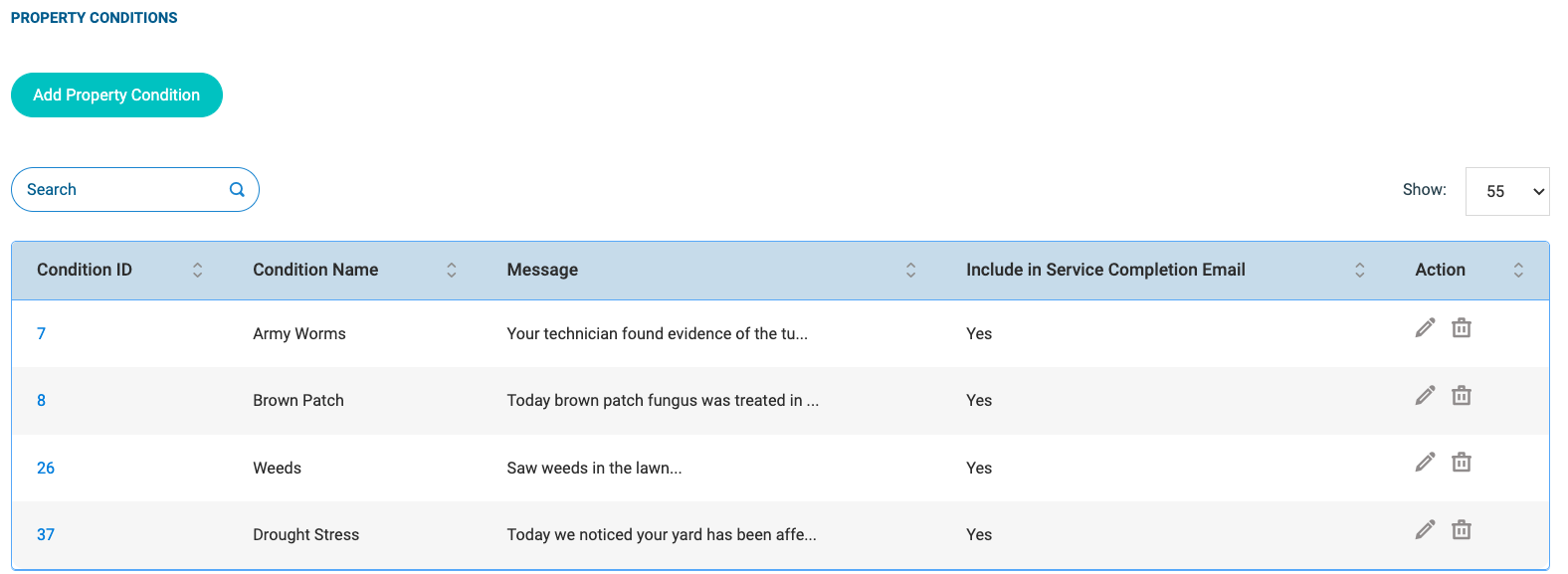
Property Conditions are standardized labels used to track recurring issues, turf diseases, weeds, or specific physical traits at the properties you service (for example: Armyworms, Brown Patch, Crabgrass, etc).
Creating a master list of Property Conditions in your Global Settings saves time for both office staff and technicians, ensuring consistent record-keeping and detailed service histories across all customer profiles.
Why Set Up Global Property Conditions?
- Standardized Reporting: Ensures technicians use consistent terminology when documenting property issues in the field.
- Faster Field Entry: Allows technicians to quickly select pre-configured conditions from a dropdown menu rather than typing manual notes for common issues.
- Better Customer Communication: Helps track ongoing lawn health trends over time and provides clear, detailed context on service completion reports.
Access & Configuration
To manage your master list of Property Conditions:
- Navigate to the Settings page.
- Go to the Property Conditions section.
- Click Add New (or click the edit icon next to an existing condition).
Fields to Complete in the "Add Property Conditions" Modal:
- Property Condition Name: Enter a clear label for the condition (e.g., Armyworms, Brown Patch, Crabgrass).
- Message: Provide detailed explanatory text or instructions regarding the condition (e.g., recommended treatment steps, precautions, or notes for the customer). This field has a limit of 1500 characters.
- Include Message in Service Completion Email? (Toggle Switch):
• Enabled (ON): Automatically includes the custom text entered in the Message box on the email notification sent to the customer upon service completion.
• Disabled (OFF): If turned off, the custom text entered in the Message box on the email notification will not be sent to the customer.
- Click Save to add the condition to your global settings.
For more information, see: Create Condition Codes in Company Settings & Add Condition Codes to a Property