If you need to pause a customer's service due to non-payment or any other reason while keeping their account active, Spraye provides an Account Hold feature.
Placing a customer's account on hold pauses all outstanding services for that customer until you are ready to resume servicing. While on hold:
- All services listed on the Unscheduled Services screen will be grayed out and unavailable for selection/scheduling.
- Historical records, billing profiles, and customer details remain fully active in the system.
Spraye allows you to apply account holds manually or automatically.
1. Manual Customer Hold
You can manually place a customer's account on hold or lift a hold at any time directly from their billing profile.
How to Manually Place an Account on Hold
- Navigate to the customer's profile.
- Open the Billing Profile screen.
- Change the Customer Status field to On Hold.
- Save your changes.
To resume services, navigate back to the Billing Profile screen and change the status back to Active.
2. Automatic Customer Hold
Spraye includes an automated hold feature that automatically places an account on hold when an invoice reaches a specific lateness threshold, and automatically restores the account to Active status once the customer pays their late invoice(s).
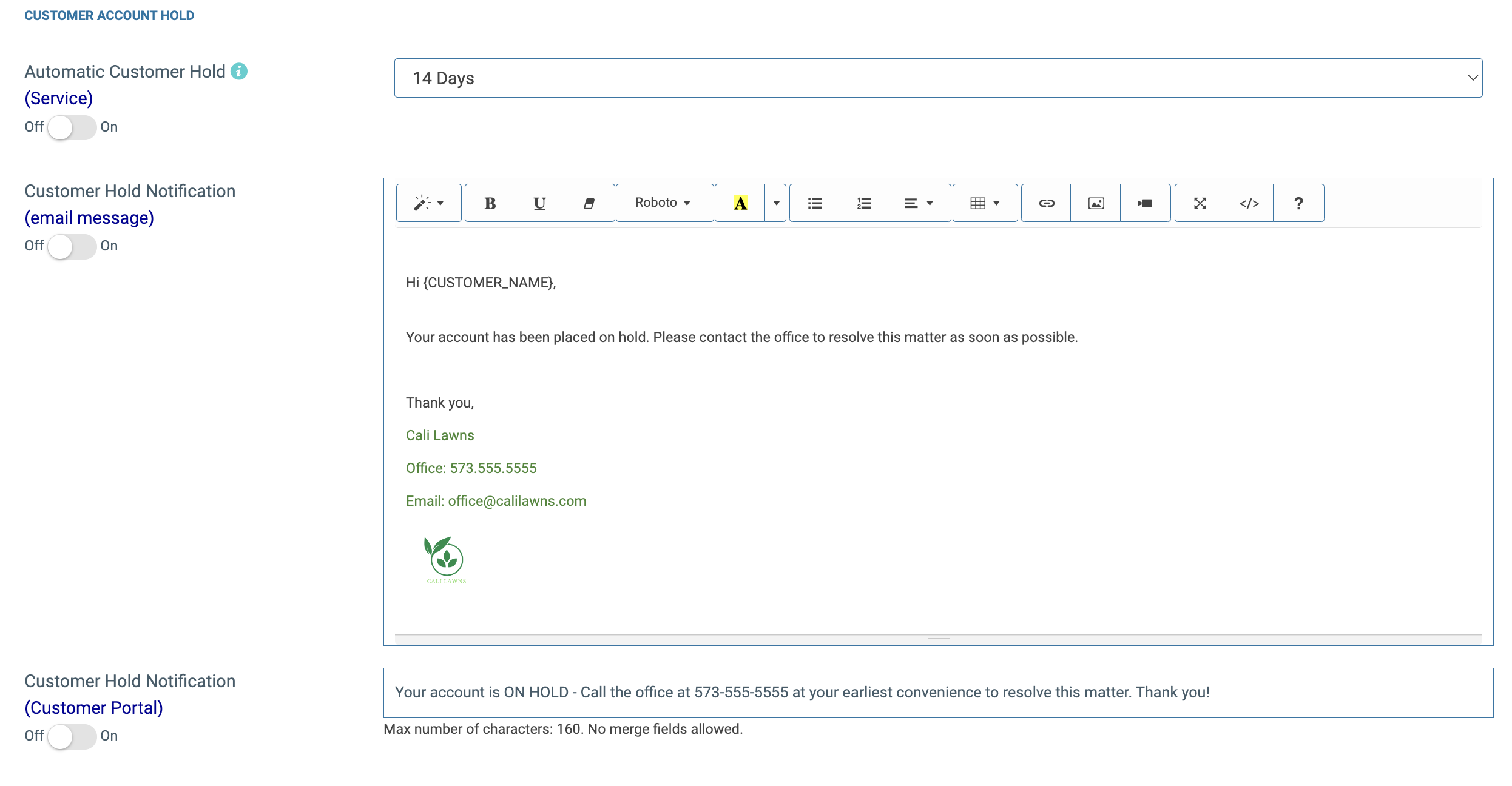
How to Set Up the Automatic Hold Feature
- Navigate to the Global Settings screen.
- Locate the Automatic Account Hold option and toggle it ON.
- Select your desired Lateness Threshold. Available timeframes include: 14 days, 30 days, 45 days, 60 days, 90 days, 180 days
Note on Lateness: The threshold is calculated based on the amount of time that has passed since an invoice was sent (or marked sent), it is not based on the invoice due date.
Features & Notifications of Automatic Hold
- Admin Notifications: Account administrators receive a notification whenever an account hold is triggered automatically.
- Customer Email Alerts: You can enable an option in Global Settings to automatically send a customized email message to the customer explaining why their account was placed on hold.
- Customer Portal Notice: A notification banner will display in the Customer Portal letting the customer know their account is currently on hold.
Bypassing Automatic Hold for Specific Customers
By default, the automatic hold feature applies globally to all customers. However, you can exclude specific clients (such as key commercial accounts) from being automatically placed on hold.
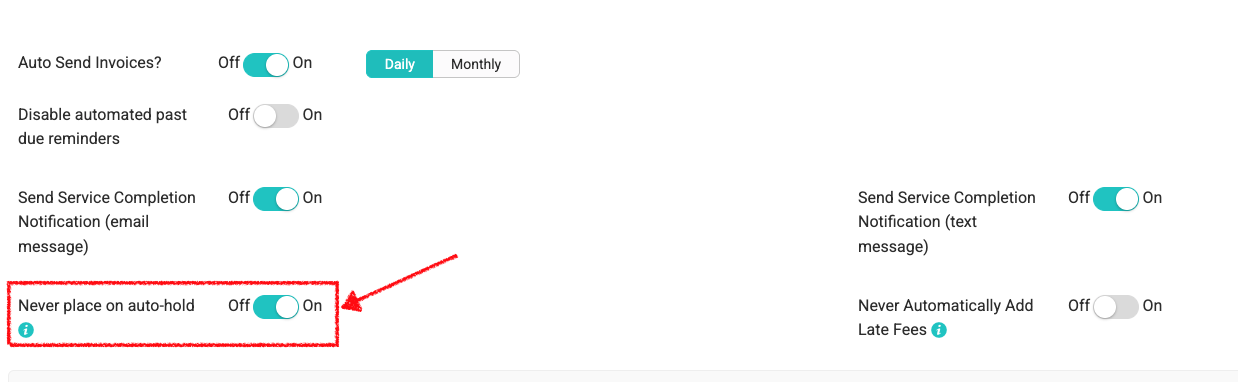
How to Enable "Never Place on Auto-Hold"
- Open the specific customer’s profile and go to their Billing Profile screen.
- Toggle the "Never place on auto-hold" setting to ON.
Important Note: If "Never place on auto-hold" is toggled ON, the system will still automatically restore the customer to Active status if the Automatic Customer Hold feature is enabled and the customer does not meet the criteria to be placed on hold automatically.