
Spraye allows you to apply discounts and coupons that you desire to your customer's accounts and/or invoices. These can be in the form of a set dollar amount or you can also use a percentage off. Our system also gives you the ability to use a coupon code for tracking purposes.
2 Types of Coupons & Discounts
1. Permanent: These discounts or coupons only need to be applied to the customer's account once, and then they will be automatically applied to all current unpaid and future invoices for that customer until that discount is removed from the customer's account.
2. One-time use: These discounts or coupons will only be applied one-time to that customer's existing unpaid invoices. These can also be applied directly to a specific invoice or service.
Set Up Your Company-Wide Coupons & Discounts
1. On your Global Settings page, scroll down until you see a section called "Coupons" towards the bottom of the page that looks like the screenshot below.

2. Next, click Add Coupon to add your first coupon. You will need to give it a name in the "Coupon Code" field, then define the amount of the % off or the dollar amount that should be taken off. Please be sure to choose the appropriate coupon type based on your needs. Permanent coupons will be applied to all existing unpaid invoices as well as any future invoices once it is applied to a specific customer. You may also optionally set an expiration date if you want a specific discount or coupon code to end at a specific time.
Apply a Coupon or Discount to a Customer Account
1. Navigate to the Customer account. Click on the "Billing Profile" tab for that customer. Scroll down to the coupon section on their profile and you will see two fields for the permanent and one-time coupons as seen in the screenshot below.

2. Select the coupon you wish to apply from the dropdown menu and check the box next to the ones you want to apply. These will be the coupons you created in the previous step. You will only see permanent coupons show up in the "Apply Permanent Coupons" dropdown menu. So, if you don't see anything available, this means you need to go an create a permanent coupon on the Global Settings page.
Apply a Coupon or Discount to a Specific Service
1. If you wish to only apply a coupon or discount to a specific service and not all services for a customer, then you would click on the "Services" tab on the customer screen and select the services from the list that you wish to discount. Once you check the box next to the service(s), then click the Apply Coupon button at the top of the table which will allow you to select which coupon you want to apply. You will only see "one-time" coupons in this dropdown menu because they will only apply to a single service "one-time".

Remove a Coupon or Discount from a Specific Service
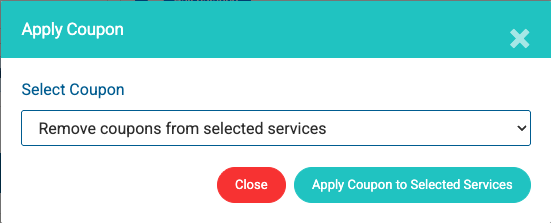
1. If you wish to remove a coupon or discount from a specific service, then click on the "Services" tab on the customer screen and select the service(s) from the list that you wish to remove the discount from. Once you check the box next to the service(s), then click the Apply Coupon button at the top of the table. In the Select Coupon drop down select the option Remove coupons from selected services. Click the Apply Coupon to Selected Services button to complete removal of the coupon.
Apply a Coupon or Discount to an Invoice
- 1. If you wish to only apply a coupon or discount to an existing invoice, then you would click on that invoice and select the desired "one-time" coupon from the list in the Add Coupons section. Once you choose that discount, then click Submit to apply the discount.

Apply a Coupon or Discount to an Estimate
1. If you wish to only apply a "one-time" coupon or discount to an estimate, then you would click on that estimate and select the desired discount from the list in the discount section. Once you choose that discount, then click Submit to apply the discount. This discount will be applied across all of the services on that estimate.
In the event that you apply a fixed $ amount discount, that discount would be split between all service. For instance, if you apply a $50 discount to an estimate with 5 services, each service will have a $10 discount. Alternatively, if you apply a % off discount, then each of the services will have a discount with that % off.

How Multiple Discounts Work Together
Spraye lets you stack discounts — a permanent coupon on the account, a one-time coupon on a service, and a one-time coupon on the invoice can all be in play at the same time. When more than one applies, Spraye always combines them in the same order, and that order matters: a percentage is always calculated on what's left after the dollar discounts, not on the original price.
The rule
Anywhere discounts are applied — a service, an invoice, or an estimate — Spraye does this:
1. Add up every dollar amount ($) discount and subtract that total first.
2. Then apply each percentage (%) discount, one at a time, to whatever is left.
Example — a $ discount and a % discount on a $200 service:
| Step | Calculation | Running total |
| Starting price | $200.00 | |
| $50 off | $200.00 − $50.00 | $150.00 |
| 10% off | 10% of $150.00 = $15.00 | $135.00 |
Total discount: $65.00. The 10% comes off $150, not off the original $200.
Example — two % discounts on a $100 service:
| Step | Calculation | Running total |
| Starting price | $100.00 | |
| 10% off | 10% of $100.00 = $10.00 | $90.00 |
| 20% off | 20% of $90.00 = $18.00 | $72.00 |
Total discount: $28.00 — not $30.00. Percentages compound rather than adding together. The order you apply two percentages in does not change the final total.
The order the layers are applied
On an invoice with services, discounts come off in this order:
1. The service price, including any price override you've set.
2. Service-level coupons (one-time coupons applied from the Services tab) come off each service individually — dollar amounts first, then percentages.
3. The discounted service lines are added together to form the invoice subtotal.
4. Invoice-level coupons — permanent coupons from the customer's Billing Profile, plus any one-time coupons applied to the invoice itself — come off the subtotal, again dollar amounts first, then percentages.
5. Sales tax is calculated on what's left, excluding any tax-exempt services.
Because of steps 3 and 4, a percentage coupon on the invoice is calculated against a subtotal that already reflects the service-level discounts.
Full example — two services on one invoice, with a service coupon and a permanent account coupon:
| Line | Amount |
| Service A (after price override) | $200.00 |
| — one-time $25 off coupon on Service A | −$25.00 |
| Service A after discount | $175.00 |
| Service B | $100.00 |
| Invoice subtotal | $275.00 |
| — permanent 10% off coupon on the account | −$27.50 |
| Invoice total before sales tax | $247.50 |
Things to know when stacking discounts
- A discount can never take an amount below $0. If the discounts add up to more than the price, that service or invoice simply lands at $0.00. There is no leftover discount carried over to another service, another invoice, or a credit on the account.
- The same coupon only counts once. Applying the same coupon to the same invoice or the same service a second time has no effect.
- A one-time coupon is used up by the first invoice it lands on. If a one-time coupon is attached to a recurring service, it will discount the first invoice that service is billed on and will not come back on the next round. Permanent coupons reapply to every invoice until you remove them from the customer's Billing Profile.
- On estimates, service-level coupons take precedence. If you apply one-time coupons to specific services on an estimate, the customer's permanent coupons will not also be added to that estimate.
- Editing a coupon does not change invoices it has already been applied to. Spraye stores the discount amount at the moment the coupon is applied. Changing a coupon's amount or type on the Global Settings page will update estimates that are still in Draft or Sent status and will affect anything the coupon is applied to going forward, but invoices and services that already carry the coupon keep the amount they were given.
- Expired coupons stop attaching, but are not removed retroactively. Once a coupon's expiration date has passed it will not be added to new invoices, but it stays on any invoice where it was already applied.
- A flat $ discount applied at the invoice or estimate level is spread evenly across the services. A $50 discount across 5 services shows as $10 against each service. A % discount applies at that same percentage to each service.
Note
- Coupons and discounts will show on the customer invoice as separate line items with the coupon code.
- Discounts are calculated before sales tax.
- Discounts are applied after any price overrides are applied.